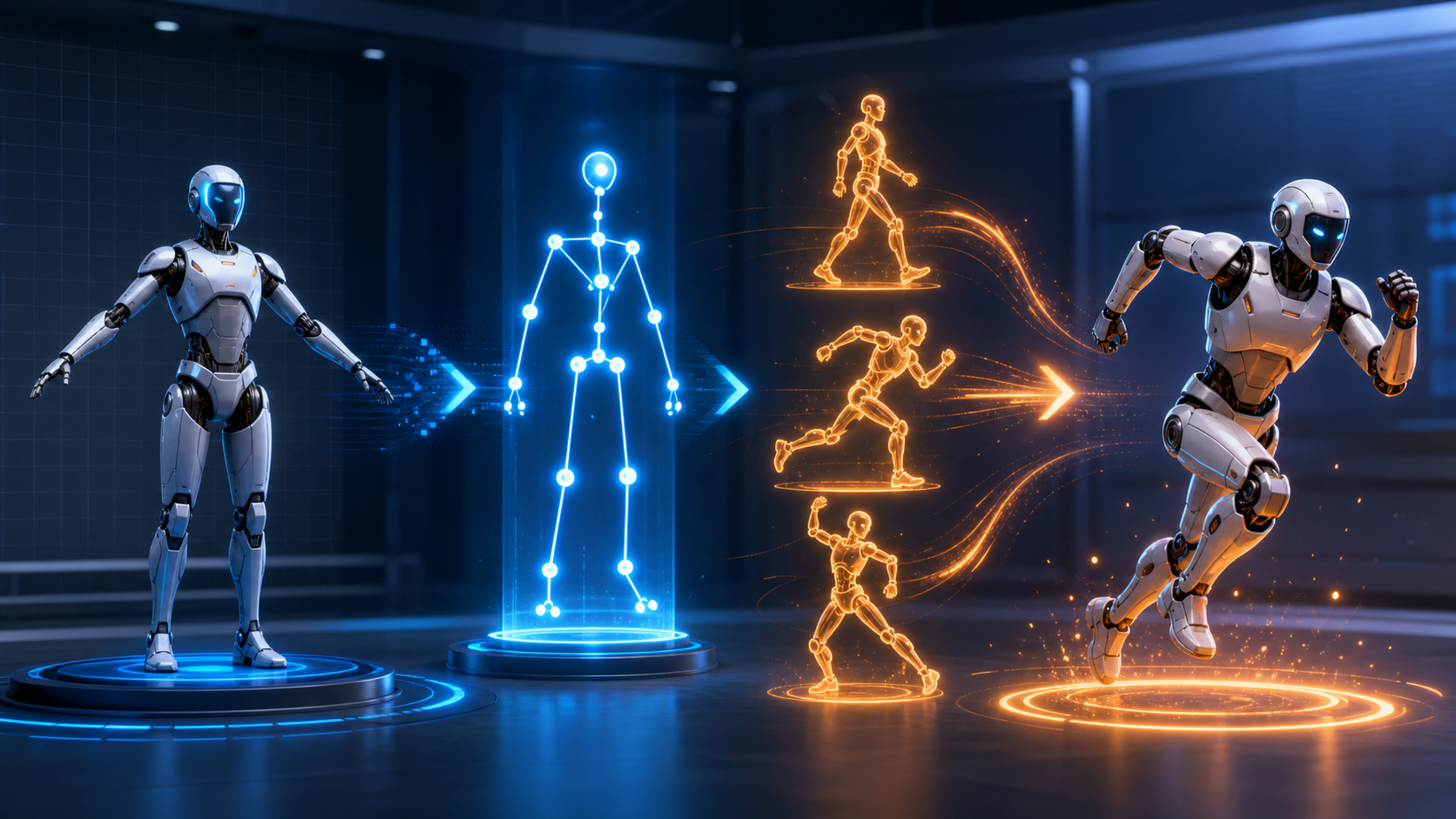
Mixamo removes two slow steps from basic 3D character animation: building a humanoid skeleton and finding common motion such as walks, runs, jumps, idles, and combat moves. Upload a suitable model, place a few markers, choose a preset animation, and download an FBX that can be retargeted in a digital content creation tool or game engine.
This guide follows the complete workflow from character preparation through export, then explains where the preset library stops being enough and custom motion capture begins.
What is Mixamo?
Mixamo is an Adobe web service for automatic humanoid rigging and motion-library animation. According to Adobe's current Mixamo FAQ, it is available without a Creative Cloud subscription to users with an eligible Adobe ID, subject to account and regional restrictions.
Its practical strengths are:
- Auto-rigging: create a skeleton for a compatible bipedal humanoid mesh.
- Animation library: preview reusable motion clips on the selected character.
- Clip controls: adjust parameters such as arm spacing, speed, and overdrive when a clip exposes them.
- Standard interchange: download FBX files for downstream 3D workflows.
- Commercial-friendly usage: Adobe says its characters and animations can be used royalty-free in personal, commercial, and nonprofit projects; check the current FAQ for exact terms and restrictions.
Mixamo is fast because it solves a narrow problem. It is not a full modeling suite, a nonlinear animation editor, or a custom performance-capture system.
Prepare a character that will auto-rig cleanly
Adobe's auto-rigger is designed for bipedal humanoids. A good source model has:
- a recognizable head, torso, two arms, and two legs;
- a neutral, roughly symmetrical pose;
- arms separated from the torso;
- legs separated from each other;
- clean connected geometry without floating body parts;
- no extra cameras, helpers, environment meshes, or props;
- manageable hair and clothing that do not obscure the limbs;
- a centered position near the world origin;
- clean topology without obvious mesh errors.
Large wings, tails, extra limbs, unusual proportions, long coats, or oversized hair can prevent a correct solve. They do not necessarily make the character unusable, but they may require manual rigging.
Supported upload packages
Adobe documents FBX, OBJ, and ZIP for custom character uploads:
- Use FBX when you want to include material assignments and embedded textures.
- An OBJ does not carry textures by itself. Package the OBJ, MTL, and texture images in a ZIP if they should appear in the preview.
- Remove unrelated scene content before export.
Keep a local copy of the original model and every successful rig. Mixamo stores only the most recently used character rather than functioning as a project archive.
How to use Mixamo animations step by step
1. Sign in
Open Mixamo and sign in with an eligible Adobe ID. Confirm that the service is available for your account type and region.
2. Upload the character
Choose Upload Character, select the FBX, OBJ, or ZIP, and wait for the preview. Confirm that the model is upright and facing the expected direction.
If textures are missing, check that FBX media was embedded or that the OBJ, MTL, and images were packaged together correctly.
3. Place rigging markers
Follow the interface and place markers on the wrists, elbows, knees, groin, and chin. Marker accuracy influences the generated skeleton, so use anatomical joint centers rather than the outer surface of clothing.
Choose the relevant finger configuration if prompted. A skeleton without detailed fingers may be simpler for projects that never show the hands closely.
4. Review the auto-rig
Once processing finishes, rotate the character and inspect:
- shoulder and hip placement;
- elbow and knee bending direction;
- foot contact;
- hand orientation;
- mesh collapse around joints;
- unwanted stretching in clothing or accessories.
Do not continue just because the rig completed. A bad bind will affect every animation that follows.
5. Browse animations
Choose Find Animations and search by movement or intent: walk, run, idle, jump, sit, turn, attack, dance, or another action.
Preview candidates on your actual character. A clip that looks good on Mixamo's default model can create hand, foot, or prop intersections on different proportions.
6. Adjust the motion
Available controls vary by clip, but may include:
- overdrive or speed;
- arm spacing;
- character arm position;
- trim or range;
- in-place versus translated motion;
- mirror or related options.
Use arm spacing to prevent hands from cutting through a broad torso. Choose in-place motion when the game engine or animation controller will manage root movement; keep translation when the clip's world-space travel is part of the performance.
7. Download the correct FBX
For the first validation, download the animated character with skin. This lets you confirm the exact mesh, skeleton, and clip together.
For an established pipeline, download subsequent animation clips without skin so the files contain motion and skeleton data without duplicating the character mesh.
Record:
- clip name;
- take or version;
- in-place setting;
- frame rate;
- FBX format selection;
- any slider values;
- intended engine state.
Importing Mixamo into Blender
- Import the FBX through Blender's FBX importer.
- Inspect scale, axis orientation, armature, and animation action.
- Confirm that the feet contact the floor and the character faces the expected forward axis.
- If using the Mixamo rig directly, organize each clip as a named Action.
- If using a custom rig, map Mixamo bones to the target and retarget the animation.
- Bake the result to the destination rig.
- Clean curves, foot sliding, hand contact, and root motion.
Retargeting add-ons can simplify mapping, but always inspect the baked result. Different limb lengths require pose corrections even when bone names match.
Importing Mixamo into Unity
Unity's Humanoid system can retarget compatible characters:
- Import the FBX into the project.
- In the Rig tab, set Animation Type to Humanoid.
- Create or copy the Avatar definition as appropriate.
- Open Configure and verify every required bone mapping.
- In the Animation tab, define loop settings and clip ranges.
- Enable root motion in the Animator only when the gameplay design uses it.
- Test transitions in an Animator Controller.
For locomotion, compare root-motion and in-place versions. In-place clips work well when code controls velocity; root-motion clips can provide natural displacement but need careful gameplay integration.
Importing Mixamo into Unreal Engine
Modern Unreal workflows use IK Rig and IK Retargeter tools:
- Import the character or animation FBX.
- Confirm skeleton scale, orientation, and root structure.
- Create an IK Rig for the Mixamo source skeleton.
- Create or select the IK Rig for the destination character.
- Define compatible retarget chains for spine, arms, legs, neck, and fingers.
- Build an IK Retargeter and align the reference poses.
- Preview the animation and correct offsets.
- Export retargeted animation assets to the target skeleton.
Reference-pose alignment matters. A source T-pose retargeted directly onto a target A-pose can cause raised shoulders and arm distortion until the base poses are matched.
Common Mixamo problems and fixes
The auto-rigger fails
Return to the model and simplify:
- move to a neutral pose;
- separate arms from the torso;
- remove props, wings, tails, and unrelated scene objects;
- connect floating body parts;
- center the character;
- repair nonmanifold or broken geometry.
The character appears gray
OBJ files do not embed image textures. Upload a ZIP containing the OBJ, MTL, and texture files, or use an FBX with embedded media.
Hands clip through the body
Increase arm spacing where the clip supports it, choose a different animation, or correct the pose after retargeting.
Feet slide
Determine whether the clip was downloaded in-place or with translation. Match that decision to the engine's root-motion setup, then correct contact through curve editing, IK, or animation warping.
The character faces the wrong direction
Check export and import axes, rotation application, and engine forward conventions before editing every clip by hand.
Motion looks too generic
Preset clips appear in many projects. Change timing, transition poses, upper-body layers, and root motion. Reserve custom animation for the performances that define the character.
What are Mixamo's limits?
Humanoid-only auto-rigging
The official auto-rigger expects a clear bipedal humanoid. Quadrupeds, vehicles, wings, tails, and highly unconventional bodies need a different rigging solution.
Preset motion rather than new performance authoring
Mixamo provides recorded library clips. It does not record an action that exists only in your reference video.
Limited character acting
General locomotion and utility movement are the natural fit. Subtle acting, exact prop contact, bespoke choreography, and story-specific timing usually need manual animation or motion capture plus cleanup.
Familiar library motion
Popular clips can be recognizable. That is acceptable for background characters or prototypes but may weaken a hero character's identity.
Mixamo versus custom motion capture
| Dimension | Mixamo library | Custom motion capture |
|---|---|---|
| Source | Existing preset clip | A newly recorded performance |
| Best use | Walks, runs, idles, jumps, common actions | Signature movement, choreography, exact timing |
| Setup | Select, adjust, download | Record, solve, clean, retarget |
| Repeatability | Immediate and predictable | Depends on capture and cleanup quality |
| Character fit | Bipedal humanoid auto-rig | Depends on solver and target rig |
| Creative specificity | General-purpose | Project-specific |
These approaches complement each other. Use Mixamo to fill the utility layer quickly, then capture or hand-animate the moments audiences will remember.
Custom capture supplies motion data, not a finished character. You still need an authorized performance, a compatible target rig, retargeting, contact cleanup, and final animation review.
The “Is Mixamo enough?” test
Ask three questions:
- Is the move common? Walks, runs, jumps, and idles are likely library candidates.
- Is the character a conventional humanoid? If not, auto-rigging may fail.
- Do you need a specific performance? Exact choreography, emotional acting, or reference-matched action is unlikely to come from a generic library.
If the answer is common movement, humanoid character, and no specific performance, Mixamo may be enough. Most polished games and films use a combination: reusable library motion for everyday actions and custom work for hero moments.
Production checklist
- Save the clean source model locally.
- Confirm humanoid proportions and neutral pose.
- Embed or package textures correctly.
- Inspect marker placement before auto-rigging.
- Validate shoulders, hips, elbows, knees, and feet after rigging.
- Preview every animation on the actual character.
- Decide in-place versus root-motion behavior.
- Download one with-skin validation file.
- Use without-skin files for additional animation-only downloads.
- Retarget and bake to the production rig.
- Correct foot sliding, hand contact, scale, and pose offsets.
- Store license notes, clip settings, and source files with the project.
Conclusion
Mixamo is effective when used for what it does best: fast bipedal humanoid rigging and common reusable movement. Prepare a clean neutral model, validate the generated skeleton, preview clips on the real proportions, and download files that match the root-motion and retargeting strategy of the destination.
When the library starts to feel generic, do not force a preset into a story-specific role. Keep Mixamo for locomotion and utility motion, then use custom capture or manual animation for the gestures, choreography, and contact that give the character an identity.
If you only need a short visual shot rather than an editable skeletal clip, a separate image-to-video workflow can animate an approved character still. Treat that as rendered footage, not as a replacement for Mixamo's rig and retargeting pipeline.
FAQ
Is Mixamo free?
Adobe's current FAQ says Mixamo is free with an eligible Adobe ID and does not require a Creative Cloud subscription. Account-type and regional restrictions apply, so check the official FAQ before planning access.
Can Mixamo animations be used commercially?
Adobe says Mixamo characters and animations are royalty-free for personal, commercial, and nonprofit projects. Review the current terms and avoid redistributing raw assets as a substitute library.
Does Mixamo support non-humanoid characters?
Its auto-rigger and animation library are designed for bipedal humanoids. Non-humanoid characters generally need a different rig or custom solution.
Should I download with skin or without skin?
Use with skin for the first end-to-end validation. Use without skin for additional animation-only files when your pipeline already has the character and skeleton.
Why does a clip look different after retargeting?
The destination character may have different proportions, base pose, bone orientation, or root structure. Align reference poses, map chains carefully, bake the result, and correct contact and offsets.
How do I create motion that is not in the library?
Record a custom performance through an appropriate motion-capture workflow or animate it by hand. Retarget the result onto the production rig, then clean foot contact, root motion, and timing.