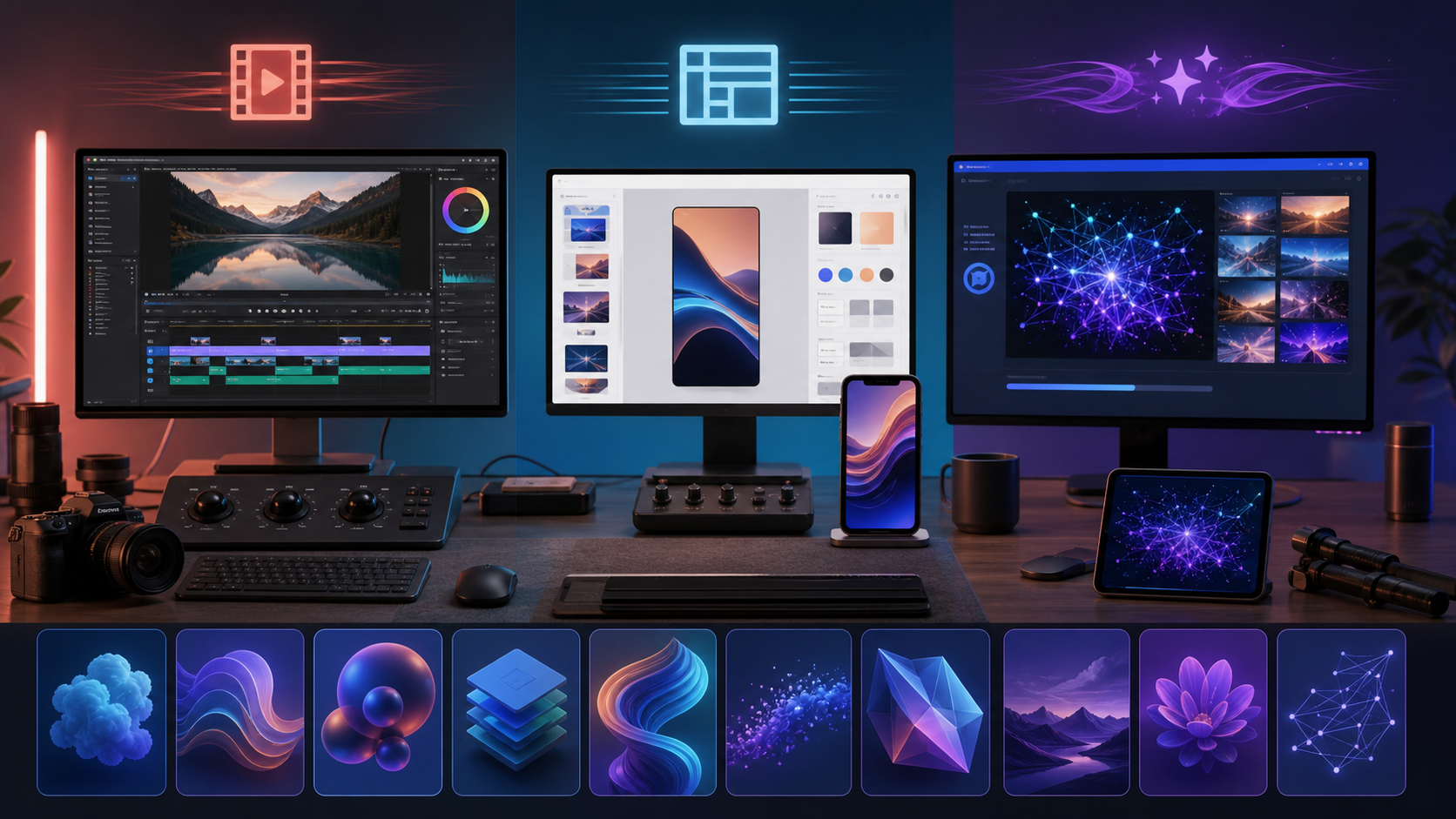
“What is the best free video software?” is the wrong first question. A professional timeline editor, a browser template maker, a social mobile app, and a prompt-to-video generator solve different jobs. Choosing by feature count often leads to locked exports, watermarks, or a workflow you quickly outgrow.
Start by deciding whether you need to edit recorded footage, assemble branded templates, or generate new visuals. Free plans and product limits change frequently, so verify current resolution, credits, watermark rules, commercial rights, and regional availability before starting client work.
1. DeepFake: AI-first generation
DeepFake fits creators who want to generate from text or reference images rather than assemble every shot on a traditional timeline. It is useful for concept visuals, social experiments, product mood, and sequences that would be expensive to film.
The advantage is speed from idea to moving image. The trade-off is precision: prompt quality, reference quality, and model behavior determine the result, while detailed cutting, compositing, sound, and finishing still belong in an editor.
Best for: rapid AI concepts and new visual material.
Watch for: current credit allowance, model-specific limits, consistency, and export terms.
2. DaVinci Resolve: professional desktop post-production
Resolve's free edition combines editing, color, Fairlight audio, and Fusion effects on Windows, macOS, and Linux. It is a strong long-term choice for filmmakers, YouTubers, colorists, and anyone expecting projects to become more demanding.
Its weakness is the learning curve and hardware appetite. For quick template work it can feel heavy; for serious control without an upfront subscription, its depth is the point.
Best for: professional timelines, color, audio, and projects that need room to grow.
Watch for: system requirements and Studio-only advanced features.
3. Microsoft Clipchamp: fast browser editing
Clipchamp is designed for quick social posts, explainers, internal videos, and screen or webcam recordings. Its drag-and-drop workflow is approachable, especially for teams already using Microsoft products.
The source article notes free 1080p exports without a watermark, though premium stock and functions may require Microsoft 365. Confirm the current plan before delivery.
Best for: beginners, tutorials, and routine business content.
Watch for: premium assets, browser preference, and limited advanced finishing.
4. CapCut: social-first editing
CapCut prioritizes captions, beat-driven cuts, effects, templates, and fast vertical workflows across mobile, desktop, and web. It is often the shortest path from raw phone footage to a polished Short, Reel, or TikTok-style edit.
Some templates, AI features, and assets may require Pro or credits, and template-led exports can carry branded elements. Manual projects give you more control over those constraints.
Best for: high-volume short-form and mobile editing.
Watch for: changing feature availability, template watermarks, privacy, and premium credits.
5. Canva: template-led brand video
Canva sits between graphic design and video editing. It suits event promos, classroom clips, pitch visuals, announcements, and marketing posts where layout and message matter more than frame-accurate cutting.
Its low learning curve is a major strength. Its ceiling appears when you need detailed sound, grading, compositing, or complex timing. Stick to assets licensed for your plan and check that every element is cleared for the intended use.
Best for: marketers, educators, founders, and non-editors.
Watch for: Pro-only assets and limited finishing control.
6. VEED: caption-heavy browser workflows
VEED emphasizes subtitles, resizing, social templates, and text-led editing. It can quickly produce captioned variants for multiple platforms.
The referenced free tier is positioned as a testing level with 720p and a watermark. That makes it useful for drafts or internal review, but less suitable for polished public delivery unless the current plan has changed.
Best for: subtitle workflows and fast browser variants.
Watch for: watermark, resolution, and AI-usage limits.
7. InVideo: structured marketing templates
InVideo turns scripts and briefs into promo-style assemblies through templates and AI-assisted tools. It fits listicles, ads, product messages, and recurring marketing formats.
The free level is best treated as exploration: credits, export restrictions, and watermark rules can limit production. Template speed can also make output feel generic if the brand system is not customized.
Best for: quick marketing concepts and script-led promos.
Watch for: credits, watermark, licensing, and template sameness.
8. Runway: advanced AI experimentation
Runway combines generative video and editing tools for style, motion, transformation, and visual-effects exploration. It is useful when the goal is to prototype something that does not begin with recorded footage.
The source describes a limited one-time free-credit allowance with watermarked generations, making the free level a product test rather than a volume production plan. Confirm current terms.
Best for: AI motion concepts and generative VFX experiments.
Watch for: credit cost, watermark, model choice, and continuity.
9. Pika: playful rapid iteration
Pika emphasizes effects, swaps, scenes, and fast generative experimentation. It is approachable for stylized social ideas where discovery matters more than timeline precision.
The referenced free plan allowed watermark-free downloads at modest resolution, but both resolution and credit policy can change. Visual consistency may also drift across complex movement.
Best for: short experimental ideas and social tests.
Watch for: output resolution, credits, and identity or geometry drift.
10. Shotcut: fully free offline editing
Shotcut is an open-source timeline editor for Windows, macOS, and Linux with broad FFmpeg codec support. It avoids cloud dependence, subscriptions, and watermarks.
The interface is utilitarian and lacks the template libraries or AI conveniences of newer platforms. In exchange, it provides an honest offline editor that does not push a paid upgrade path.
Best for: budget-conscious offline editing and broad file support.
Watch for: a less polished interface and fewer built-in automation features.
Compare the ten tools
| Tool | Workflow | Free-level value | Best fit | Main trade-off |
|---|---|---|---|---|
| DeepFake | AI generation | Check current credits | New visual concepts | Less timeline precision |
| DaVinci Resolve | Pro desktop NLE | Deep free edition | Film, color, audio | Learning curve |
| Clipchamp | Browser editor | Practical simple exports | Business and beginners | Limited finishing |
| CapCut | Social editor | Fast cross-device work | Shorts and captions | Pro features vary |
| Canva | Template maker | Strong free design tools | Marketing and education | Limited post control |
| VEED | Browser captions | Useful for testing | Subtitle-heavy content | Free watermark/resolution |
| InVideo | Marketing templates | Concept exploration | Ads and promos | Credits and sameness |
| Runway | Generative suite | Advanced product trial | AI/VFX prototypes | Limited free volume |
| Pika | Generative effects | Playful experimentation | Social concepts | Resolution/consistency |
| Shotcut | Open-source NLE | Fully free and offline | General editing | Utilitarian UX |
Choose by the work you expect to do
Choose a desktop editor when control matters
Use Resolve for a professional growth path or Shotcut for a lighter open-source workflow. Both make sense when you own the footage and need exact cuts, codec control, and offline work.
Choose a template tool when speed matters
Clipchamp, Canva, CapCut, VEED, and InVideo reduce setup for recurring social, educational, or marketing formats. Compare clean-export rules before investing in a template system.
Choose an AI generator when the footage does not exist
DeepFake, Runway, and Pika are useful for concepting and visually difficult scenes. Begin with a narrow test, then finish approved output in a timeline editor. Try text-to-video for a new scene or image-to-video when an approved still already defines the look.
A free-plan checklist
Before committing, confirm:
- maximum export resolution and frame rate;
- watermark or mandatory outro;
- monthly versus one-time credits;
- commercial-use and asset licenses;
- storage and project-retention limits;
- supported operating systems and browsers;
- caption, audio, and collaboration limits;
- whether AI inputs are retained or used for training;
- upgrade cost once the free allowance runs out.
For face, voice, or identity workflows, use only authorized material and obtain informed consent. A free tool does not remove your responsibility for privacy, likeness, copyright, disclosure, or platform rules.
Pick for the next six months
The best free option is the one that matches your next body of work without trapping the files or exports. Choose a desktop editor if you expect deeper grading, sound, and finishing; a template tool if consistent publishing speed is the priority; and an AI generator if you need to create footage that was never filmed.
Explore DeepFake's available video models for generation, but budget for editing and review as separate parts of the workflow. “Free” is useful only when the output remains publishable, properly licensed, and easy to move into the next stage.