GPT Image 2 is available as an online image-generation and editing tool in 2026. You can use ChatGPT Images 2.0 from a modern browser without downloading a model checkpoint, configuring a GPU, or installing a desktop art suite. The generation work happens in the cloud; your device handles the conversation, uploads, previews, and downloads.
That simplicity is real, but several details are often described incorrectly. Free image creation does not have a guaranteed public “images per day” number. Limits can change with the plan and demand, and ChatGPT shows the current reset time when you reach one. A ChatGPT subscription does not include free OpenAI API usage. Third-party sites advertising the same model have their own billing, privacy, and retention rules.
This guide explains the official browser route, how to make useful images instead of random demos, what happens when you upload a reference, how to manage dynamic limits, and when a different online workflow is a better choice.
What Is the GPT Image 2 Online Tool?
OpenAI introduced ChatGPT Images 2.0 and the gpt-image-2 API model on April 21, 2026. In ChatGPT, image creation is conversational: describe an image, review the result, and request changes in natural language. You can also upload an image and ask for a transformation or edit.
The phrase “GPT Image 2 online tool” can refer to three different products:
- ChatGPT Images 2.0, the official consumer experience at ChatGPT on the web and in supported apps;
- OpenAI's Image API or Responses API, used by developers to build image features into websites and applications;
- Third-party web tools, which may use GPT Image 2 or another model behind their own interface.
They are not interchangeable. ChatGPT plan limits, API billing, output controls, file retention, moderation, and support are separate. Before uploading sensitive work to any third-party tool, confirm who operates it and which model it actually uses.
Why Browser-Based Generation Is Useful
No local model setup
Local image systems may require large downloads, specific GPU drivers, Python environments, model files, and enough VRAM for the desired resolution. Browser-based generation moves that infrastructure to a remote service. A lightweight laptop, Chromebook, tablet, or managed work computer can participate if the browser and network are supported.
The model is updated centrally
You do not manually patch the image model. Product improvements appear through the online service. That convenience also means behavior may evolve. Save final files, prompts, references, and dates when reproducibility matters.
Conversation becomes the editor
You can begin with a rough idea and refine it in steps: adjust the framing, replace one object, translate copy, change the palette, or produce a new aspect ratio. This is often easier for non-designers than learning masks and layers immediately.
Work can continue across devices
Signed-in chat history and the ChatGPT image library can make previous creations easier to revisit, subject to current product behavior, account settings, and storage. Still download production masters; an online history is not a substitute for an asset archive.
Official Way to Use GPT Image 2 in a Browser
Step 1: Open ChatGPT
Go to ChatGPT in a current browser and sign in. Use the official domain rather than an advertisement or look-alike login page. A padlock icon alone does not prove a website belongs to OpenAI; inspect the domain.
Step 2: Start an image request
Ask directly in the composer: “Create a landscape editorial illustration…” Depending on the current interface, image creation may also appear as a tool or mode. Product controls can move over time, so a natural-language request is the most durable method.
Step 3: Describe the goal, not only the subject
Include what the image is for. “Hero image for a sustainable architecture article” gives useful context that “futuristic building” does not. Then specify medium, subject, composition, light, palette, and constraints.
Step 4: Generate and inspect
Generation time varies with quality, complexity, service load, and plan. Do not plan a deadline around a fixed number of seconds. Inspect the result at full size, especially hands, small objects, product geometry, reflections, and text.
Step 5: Revise one thing at a time
Ask for a focused change and repeat the invariants:
Change only the background from cobalt to warm cream. Preserve the bottle shape, cap, label-free surface, camera angle, shadows, crop, and lighting direction.
Small revisions are easier to evaluate than an overloaded request that changes palette, pose, layout, copy, and style at once.
Step 6: Download and archive
Save the final image with a meaningful filename. Keep the prompt, reference files, date, aspect ratio, and any approval notes nearby. If the asset will be edited later, keep a clean version without text or crop overlays.
ChatGPT Free Limits: What Is Actually Known
Free users can create images in ChatGPT. OpenAI's current Free Tier FAQ states that image creation may have a separate tool limit from the main chat limit. When the current limit is reached, ChatGPT shows that access is paused and indicates when it resets or which upgrade options are available.
There is no stable official daily number to quote. A report such as “three images every day” may have been true for one account, region, or moment and still be wrong for another user. Limits can change over time.
The safe planning assumptions are:
- Free image creation is limited and may be slower.
- Paid plans generally offer more capacity or capability, but limits still apply.
- The in-product notice is the authoritative source for your account's current reset.
- Upgrading from Free resets current usage rates according to the Free Tier FAQ.
- ChatGPT and API usage are billed separately.
If a project has a hard delivery deadline, generate early and keep alternate assets. Do not wait until the final hour and depend on an unknown remaining quota.
ChatGPT vs. the GPT Image 2 API
The browser chat is designed for interactive creation. The API is designed for applications and repeatable systems.
Use ChatGPT when you want to:
- explore ideas conversationally;
- upload a reference and refine it through follow-ups;
- create occasional personal or professional assets;
- avoid writing code;
- work from a browser or mobile device.
Use the Image API when you need to:
- generate or edit from a single programmatic request;
- set dimensions, quality, format, and compression;
- request multiple outputs in one call;
- connect generation to a content pipeline;
- track usage and errors in an application.
Use the Responses API image tool when you need to:
- combine reasoning and image generation;
- maintain multi-turn image context;
- let a mainline model decide when to create or edit;
- include image generation inside a larger agent workflow.
API access requires developer setup and separate pay-as-you-go billing. A Free, Plus, or Pro ChatGPT account is not an API credit pool. Check current developer pricing before estimating costs.
What Can GPT Image 2 Make?
Editorial and social images
It can create article covers, campaign concepts, thumbnails, cards, and social graphics. Ask for negative space where copy will be placed. Even with improved text generation, set final campaign typography in a design tool when accuracy matters.
Product concepts
The model can generate clean still lifes, material studies, packaging concepts, and lifestyle scenes. It should not be used to misrepresent a real product. Compare shape, features, and color against the approved item before publishing.
Illustrations and comics
It supports watercolor, ink, graphic novel, manga, pixel art, collage, and many other visual modes. Character continuity across multiple independent generations can still drift. Create reference sheets, reuse exact identity descriptions, and inspect every panel.
Infographics and diagrams
Improved layout and text rendering make visual explainers possible, but generated facts, labels, and relationships require verification. Treat the first output as a designed draft. Rebuild high-stakes diagrams with editable shapes and real data.
Image edits
Upload an image you have the right to use, then request background replacement, object removal, color changes, relighting, reframing, or stylistic transformation. GPT Image 2 processes API image inputs at high fidelity, but edits can still change details you intended to preserve.
A Prompt Framework for Better Browser Results
Organize your prompt so it can be skimmed and revised:
GOAL:
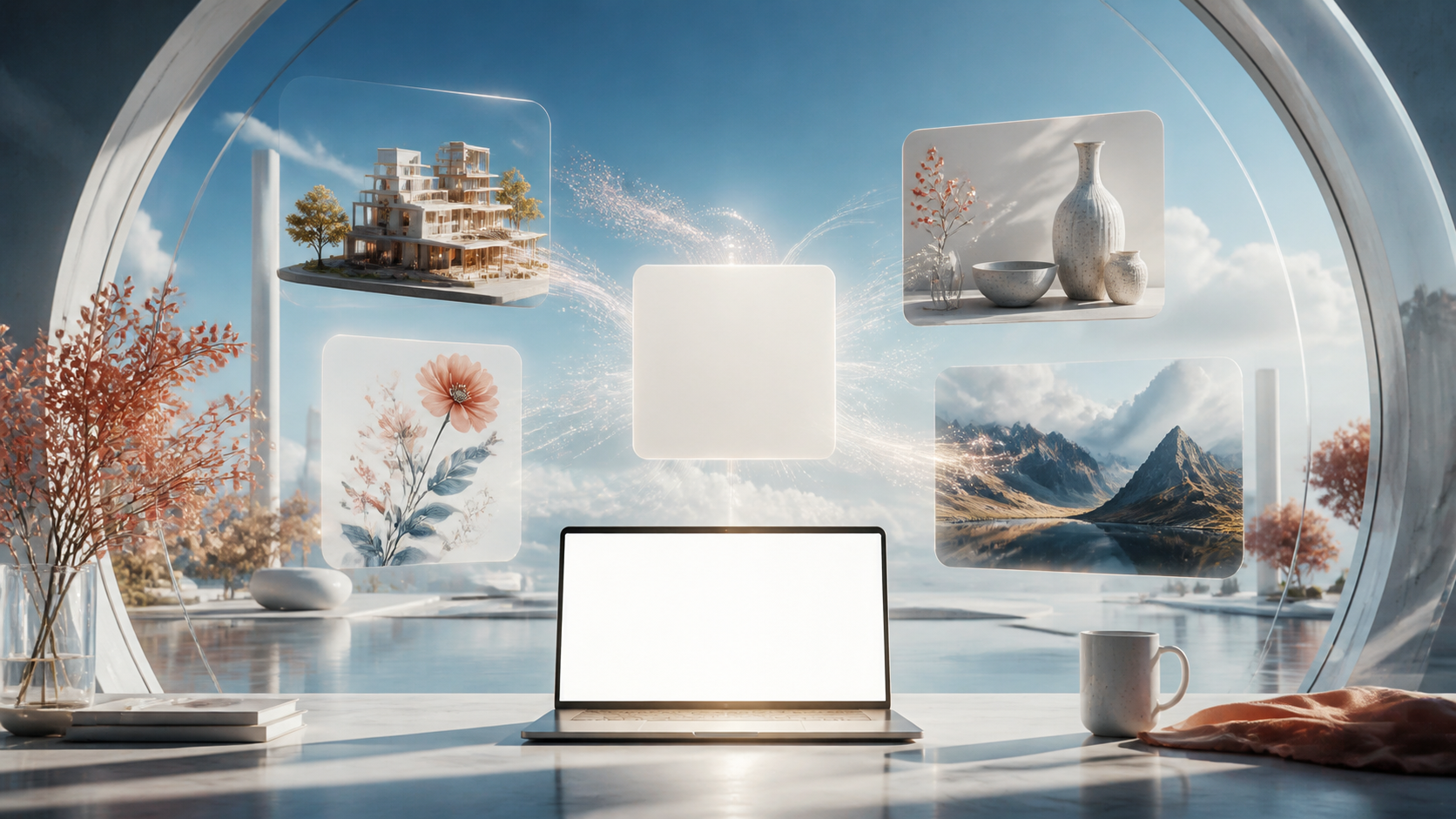
16:9 hero image for an article about a calm digital creative studio.

SCENE:
Sunlit circular room above clouds, pale stone desk, glass architecture.

SUBJECT:
One blank luminous canvas surrounded by four floating visual studies:
architecture, botanical illustration, ceramics, and landscape photography.

COMPOSITION:
Wide symmetrical frame, canvas centered, laptop low in foreground,
clean upper corners, strong depth, no cropped main objects.

STYLE AND LIGHT:
Premium photorealistic editorial image, cobalt, white, coral, pale gold,
bright natural side light, realistic glass and paper texture.

CONSTRAINTS:
No text, letters, numbers, logo, watermark, interface, or identifiable person.
The blocks are not magic syntax. They prevent contradictory requests and make follow-ups easier. Change the SUBJECT block for a new concept while preserving the overall art direction.
Prompting Text Inside Images
GPT Image 2 is stronger at text than earlier image systems, but it is not a typesetting engine. Keep copy short, place literal text inside quotation marks, identify hierarchy, and use high quality for small or dense content.
Create a vertical museum poster.
At the top, the exact title "LIGHT IN MOTION" in large condensed black type.
Below it, the exact date "SEPTEMBER 12" in smaller red type.
Do not add any other words or symbols.
Proofread every character. For a published poster, recreate the approved copy in a layout tool, where typography remains editable, selectable, and accessible.
Editing an Uploaded Image Safely
Only upload files you are authorized to process. Avoid confidential client art, identity documents, private photographs, medical records, unreleased products, or sensitive workplace material unless the selected service and organizational agreement explicitly permit it.
Before editing:
- Remove unnecessary metadata and unrelated people.
- Crop out details the model does not need.
- Keep an untouched local original.
- State exactly what may change.
- List geometry, identity, copy, and colors that must remain fixed.
- Compare the result to the source at full resolution.
A good edit prompt is explicit:
Change only the table surface to pale travertine.
Keep the bottle, cap, reflections, label-free glass, bottle proportions,
camera position, crop, background, lighting, and shadows exactly unchanged.
Do not add text, logos, plants, hands, or extra objects.
If the edit drifts, return to the last acceptable image. Stacking many changes on a flawed intermediate can compound errors.
Output Quality and Formats
In the API, GPT Image 2 supports low, medium, high, and automatic quality. Low is useful for drafts; medium and high are better candidates for detail, dense text, identity-sensitive edits, and final assets. The model supports flexible dimensions within documented pixel, edge, ratio, and multiple-of-16 constraints.
PNG is the default output format. JPEG and WebP are available with compression controls and can reduce transfer time. GPT Image 2 currently does not support requests that force a transparent background. If you need alpha, generate against a clean contrasting background and remove it in a separate tool.
The ChatGPT interface may abstract these developer parameters. Ask for the intended orientation and use case in your prompt, then crop or resize from a high-quality master.
Official ChatGPT vs. Third-Party Online Generators
Third-party tools can be convenient. Some provide a focused canvas, credit packages, batch generation, asset libraries, or access to several image models. They are not automatically equivalent to ChatGPT.
Before using one, verify:
- the company and legal entity operating the service;
- whether it truly uses GPT Image 2 or a different model;
- pricing, credits, renewals, refunds, and failed-generation policies;
- image and prompt retention;
- whether uploads may be used for training;
- deletion and export controls;
- commercial terms;
- output resolution and compression;
- moderation and support channels.
Never enter your ChatGPT password or OpenAI API key into an unknown image site. Legitimate services should use their own secure billing or a clearly documented authentication flow.
Privacy, Rights, and Responsible Use
Online generation involves sending prompts and any input images to a remote service. Review the current privacy controls and terms for the exact product and account type. Workplace and enterprise agreements may differ from personal accounts.
Rights to an output do not erase other legal obligations. A generated image can still raise issues involving trademarks, publicity rights, privacy, copyrighted source material, deceptive advertising, or local law. Paying for a higher plan does not automatically make an otherwise infringing use safe.
For commercial work:
- use original concepts and authorized references;
- prefer broad visual descriptions over copying a living artist's signature style;
- get consent for recognizable people;
- verify product and factual accuracy;
- retain prompts and review notes;
- disclose synthetic media when required by policy, contract, or law;
- have counsel review high-risk campaigns.
Common Problems and Fixes
The image contains extra objects
State an exact count, position each object, and list prohibited extras. Replace vague phrases such as “minimal desk accessories” with “exactly one notebook and one unbranded ceramic cup.”
The composition ignores negative space
Specify the destination and placement: “subject on the right third, empty matte navy area across the left 40 percent for later copy.” A rough layout reference can help when available.
An edit changes the whole image
Use “change only X,” followed by a preserve list. Make a smaller change, and edit from the original rather than an already drifted version.
Text is almost correct
Shorten it, quote it exactly, remove competing copy, increase quality, and specify hierarchy. If one letter is still wrong, typeset the final text externally rather than spending repeated generations on a flattened asset.
You reach the free limit
Read the reset time shown in ChatGPT and wait, or consider an eligible paid plan if the work justifies it. Do not assume another user's daily count applies to you. For automated production, evaluate API billing separately.
The browser feels slow
Close memory-heavy tabs, update the browser, test a stable connection, and try a different supported browser or device. Generation itself runs remotely, but large uploads, previews, and downloads still depend on local memory and network quality.
From Browser Image to Video
An online image can be the first frame of a larger story. Export a clean landscape or portrait master without captions. Ensure hands, limbs, props, and background geometry are stable before adding motion. Leave space in the direction the subject will move.
Then test the still in an image-to-video workflow. Start with one clear motion cue: a slow push-in, wind through fabric, a product turn, or a character's subtle glance. Demanding camera orbit, subject action, weather change, and transformation in one clip increases distortion risk.
If the starting image does not exist, a text-to-video workflow may be faster than designing a still first. Compare available image and video options in the DeepFake model catalog when a project needs several visual behaviors.
A Practical Browser-Only Workflow
- Write a one-sentence asset goal.
- Choose aspect ratio and destination before generating.
- Draft with a structured prompt.
- Inspect the result at full size.
- Revise one issue at a time.
- Download a clean master without final copy.
- Add exact typography and brand assets in a design editor.
- Export web, social, and print derivatives.
- Archive prompt, references, date, and approval state.
- Animate only after the still passes visual QA.
This workflow remains useful even when the interface changes. The browser is only the surface; clear intent, controlled iteration, and verification create the production value.
Final Takeaway
GPT Image 2 makes sophisticated image generation accessible from a browser, but “online” does not mean “unlimited,” “free API,” or “no review required.” Use ChatGPT for conversational creation, the API for programmatic systems, and third-party sites only after checking their identity and terms.
Start with a clear goal, structure the prompt, preserve important details during edits, and treat the final image as a draft until text, facts, rights, and geometry have been reviewed. With that discipline, the browser can become a capable studio—without turning cloud convenience into production risk.