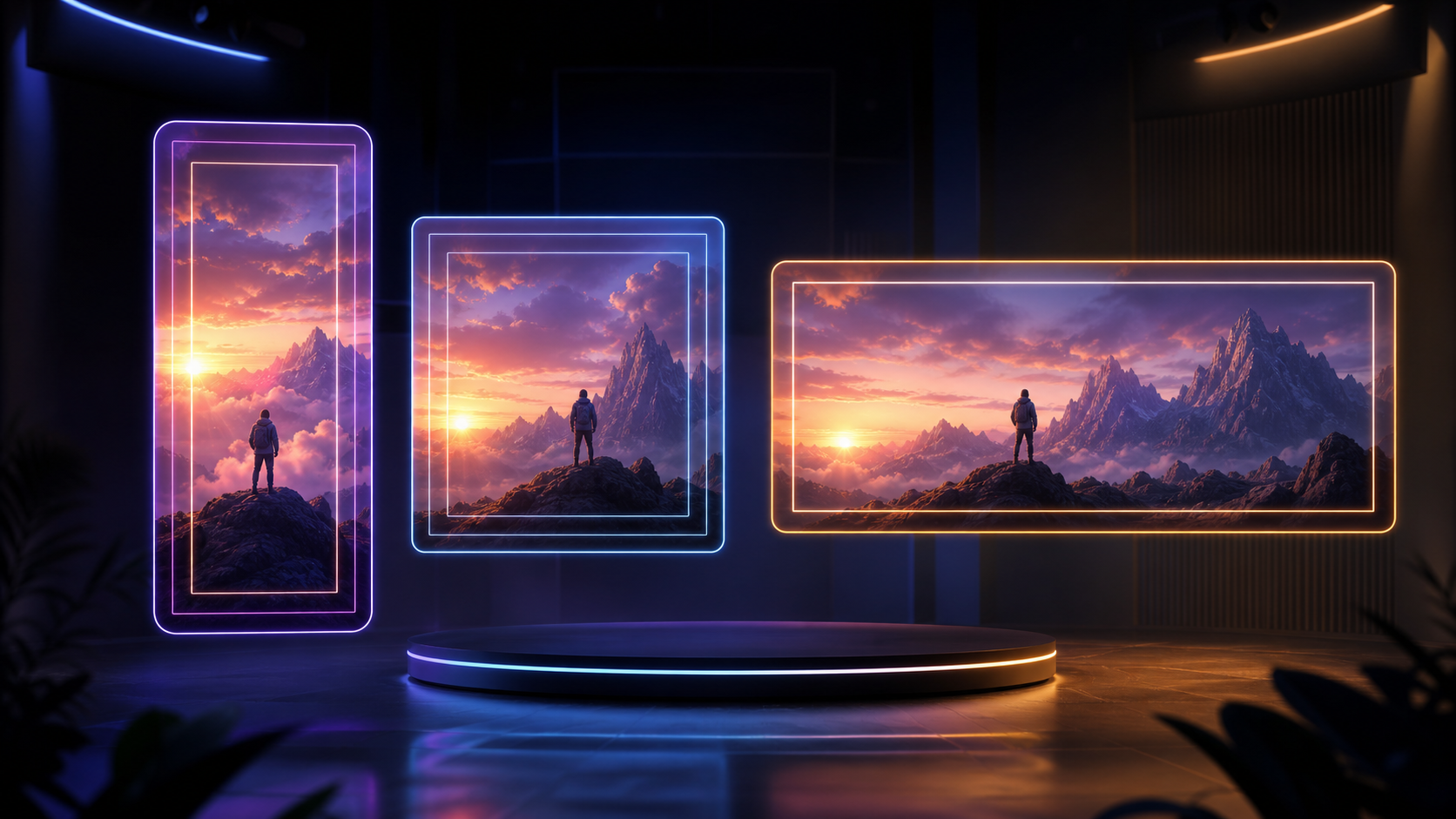
An AI-generated clip can look excellent in a preview and still fail when it reaches its destination. TikTok captions may cover the product, Reels controls may sit over a face, or a 16:9 crop may remove the gesture that explains the scene. These are usually composition problems rather than rendering problems.
The practical fix is to choose delivery ratios before generation, protect a conservative center-safe composition, and preview every export inside the interface where viewers will see it. This guide turns that principle into a repeatable workflow for 9:16, 4:5, 1:1, and 16:9 AI video.
Why aspect ratio is a creative decision
Aspect ratio describes the relationship between a frame's width and height. It affects far more than the export container. The ratio determines how much environment fits beside a subject, how far a camera can travel before the subject reaches an edge, and where captions or calls to action can live.
A landscape source animated for a vertical placement creates an immediate tradeoff: crop the sides, extend the environment, or make a separate vertical composition. If the original puts essential information at both edges, a simple center crop cannot preserve it.
Choose the main destination before writing the motion prompt:
- Use 9:16 for full-screen TikTok, Instagram Reels, and YouTube Shorts.
- Use 4:5 or 1:1 for feed-first posts where vertical height or a compact square matters.
- Use 16:9 for standard web players, presentations, landing-page embeds, and long-form YouTube.
- Create separate masters when vertical and widescreen versions are equally important and one crop would weaken the shot.
Ratio and resolution are different. A 9:16 file can be produced at several pixel dimensions; the ratio controls shape, while resolution controls pixel count.
A practical delivery matrix
Platform interfaces and ad specifications change, so use this table for planning and confirm current requirements in the relevant publishing interface before launch.
| Destination | Starting ratio | Composition priority | Main risk |
|---|---|---|---|
| TikTok | 9:16 | Full-screen vertical with a centered anchor | Caption and action UI cover edge content |
| Instagram Reels | 9:16 | Center-safe subject and details | Feed preview and Reels UI expose different areas |
| YouTube Shorts | 9:16 | A clear subject in the central column | Title and interaction controls compete with lower and right areas |
| Instagram or Facebook feed | 4:5 or 1:1 | Immediate readability while scrolling | A reused 16:9 master makes the subject too small |
| YouTube or web player | 16:9 | Horizontal staging with environmental context | A vertical source needs intentional side treatment |
| Multi-platform campaign | Separate 9:16 and 16:9 masters when possible | Preserve the same visual anchor | One automatic crop cannot serve every shot |
Build a center-safe master composition
“Safe zone” can refer to two related ideas. The first is the platform safe zone, where interface overlays are less likely to cover content. The second is a subject-safe region: your own conservative central area that keeps essential information visible across crops.
You control the second one, so define it before generation.
1. Choose one non-negotiable anchor
Name the element that must survive every crop: a face, the complete product, a hand demonstration, or a graphic added in post. One protected anchor is easier to manage than five equally important objects.
For a product clip, a useful rule is: “The complete bottle silhouette and cap remain visible in the central area for the entire shot.” For a portrait: “Both eyes, chin, and hairstyle remain clear, with breathing room above the head and below the shoulders.”
2. Simplify the edges
Place expendable background texture near the outer frame. Keep prices, legal copy, faces, product benefits, and other critical details away from the extreme top, bottom, left, and right.
This matters throughout the motion. A subject that starts centered can drift behind interface controls during an orbit or lateral track. Inspect the full path, not only the opening frame.
3. Reserve text space deliberately
Decide whether copy will be burned into the file, added as platform text, or delivered as captions. If the video needs an internal headline, reserve a quiet area and keep it away from the outer bands.
Avoid relying forever on a single template or fixed pixel offset. Safe areas can vary by app version, device, locale, placement, and interface state. Use the latest official overlay when available, then check a draft upload on a real device.
Generate motion that survives reframing
Some camera moves adapt to new crops more reliably than others:
- A locked shot or slow push-in is usually easiest because the anchor stays predictable.
- A small pan can work when the subject's full path remains inside the intended crop.
- A large orbit reveals hidden geometry and more background, making vertical reframing harder.
- A fast lateral track can feel spacious in 16:9 but cramped in 9:16.
- A zoom combined with an orbit makes edge clearance difficult to predict.
Choose one clear movement. If you are starting from a still, the DeepFake image-to-video workflow is a natural place to test the motion with a short, low-risk generation before committing to a full campaign.
Prompt patterns that describe visible constraints
Vertical product shot
Slow, steady push-in on the skincare bottle. Keep the complete bottle centered and fully visible throughout. Preserve clean background above and below. Stable camera, no orbit, no lateral drift.
Portrait intended for multiple crops
Subtle natural breathing and one gentle blink. Locked camera. Keep the face centered, both shoulders visible, and the hairstyle unchanged. Background motion stays soft and does not cross the face.
Widescreen lifestyle scene
Slow horizontal track through the workspace while the person remains within the middle third. Preserve clear headroom and keep the demonstrated object visible for the full move.
These prompts describe what must remain visible instead of depending on an exact percentage that the generator may interpret inconsistently.
Reframe one clip into several ratios
When one generation contains enough space for multiple versions, reframe it in a controlled order:
- Mark the anchor. Track the face, product center, or demonstrated action through the complete clip.
- Create the most constrained crop first. For social-first work, this is normally 9:16.
- Reposition over time. A static center crop may fail when the subject moves. Use gentle position keyframes so the crop follows the anchor without creating a second, jerky camera move.
- Build 4:5 and 1:1 versions. Recheck text scale; copy designed for a tall frame may feel oversized in a square.
- Design 16:9 intentionally. For vertical sources, use a considered background, a restrained blurred fill, or a separate widescreen generation. Never stretch the image horizontally.
- Export each ratio separately. Use clear filenames such as
serum_pushin_9x16_v03.mp4andserum_pushin_16x9_v02.mp4.
Regenerate only when reframing changes the meaning of the shot. If a crop removes the hand using a product, hides the reveal, or needs constant aggressive repositioning, the original motion is not suitable for that ratio. When the anchor remains visible and there is enough surrounding space, cropping is safer than introducing a new generation with new visual variation.
Safe-zone checklist
For every vertical export, review these areas:
- Top band: leave breathing room for account or placement labels.
- Bottom band: keep essential copy and calls to action clear of captions, descriptions, audio labels, and progress controls.
- Right rail: do not place a face, logo, price, or product edge against interaction controls.
- Center: keep the primary subject and the payoff of the movement here.
- Caption area: preview with captions enabled rather than assuming a clean silent frame represents the final experience.
Apply the same reasoning to feed and widescreen versions. A web player may not have a social action rail, but playback controls can still obscure the bottom edge.
On-device QA before publishing
A desktop timeline cannot reproduce every publishing interface. Use draft uploads or placement previews wherever possible.
Visual pass
- Watch the entire export at normal speed.
- Pause on the opening frame, the motion extreme, and the end card.
- Confirm faces, product edges, logos, prices, and disclaimers stay readable.
- Check that auto-captions do not collide with burned-in text.
- Make sure crop tracking does not look like an unintended second camera move.
Technical pass
- Verify the exported ratio and orientation.
- Preserve the source frame rate unless the destination requires a change.
- Review the actual exported file, not only the editing timeline.
- Confirm current file-size, duration, codec, and resolution rules in the platform interface.
Campaign pass
- Keep file, campaign, and analytics names consistent.
- Treat each crop as a separate creative deliverable.
- Record whether performance differences came from framing, message, motion, or audience.
- Keep source assets, prompts, and export settings so successful variants can be reproduced.
Five common aspect-ratio mistakes
Generating only 16:9 and hoping every vertical crop works
A wide establishing shot often leaves the central subject too small in vertical. Generate a closer vertical composition or plan a dedicated vertical master.
Adding text before the crop is approved
Lock the moving-picture crop first. Add captions, price, logo, and call to action separately for each delivery ratio so typography can be placed for that frame.
Trusting one safe-zone template forever
Templates are useful snapshots, not permanent rules. Check their date and source and inspect a draft inside the current platform experience.
Protecting only the first frame
Failures often appear at the farthest point of a camera move. Scrub the entire clip and inspect its maximum left, right, top, and bottom positions.
Regenerating when a crop would work
Every generation can introduce different motion or visual details. Reframe first when the shot has sufficient space and the anchor remains stable; regenerate when composition or motion genuinely conflicts with the destination.
A repeatable production workflow
For each new AI video asset:
- List every required placement and ratio.
- Choose the primary ratio and one protected anchor.
- Prepare a source image with clean, expendable edges.
- Write one camera move that keeps the anchor center-safe.
- Generate a short test and review its complete motion.
- Reframe into each required ratio.
- Add text and captions separately for each version.
- Preview on-device with realistic platform overlays.
- Export, name, and log every deliverable.
There is no universally best aspect ratio. The right frame is the one that matches the destination while preserving the subject, motion, and message. Decide it upstream, compose conservatively, and verify it in the real player. That discipline prevents the expensive outcome of regenerating a good shot because the publishing interface covered what mattered.
FAQ
Can one AI video serve TikTok, Reels, Shorts, feeds, and YouTube?
Sometimes. A centered subject, restrained movement, clean edges, and separately added typography make one master more adaptable. Shots with wide staging, edge-to-edge action, or important side details usually need separate vertical and widescreen compositions.
Should I generate in 9:16 or crop to it later?
Generate in 9:16 when vertical platforms are the primary destination. Crop an existing wider clip when the anchor remains large enough, its motion stays inside the vertical frame, and no essential action is lost.
Are safe-zone pixel measurements permanent?
No. Interface layouts and placements change, and visible areas can vary by device or context. Use current platform templates as a starting point and validate with a real draft preview.
When should I add captions and logos?
After each ratio's picture crop is locked. Controlled editing layers are more reliable than asking a video generator to render exact text or branding, and they can be positioned for each destination.