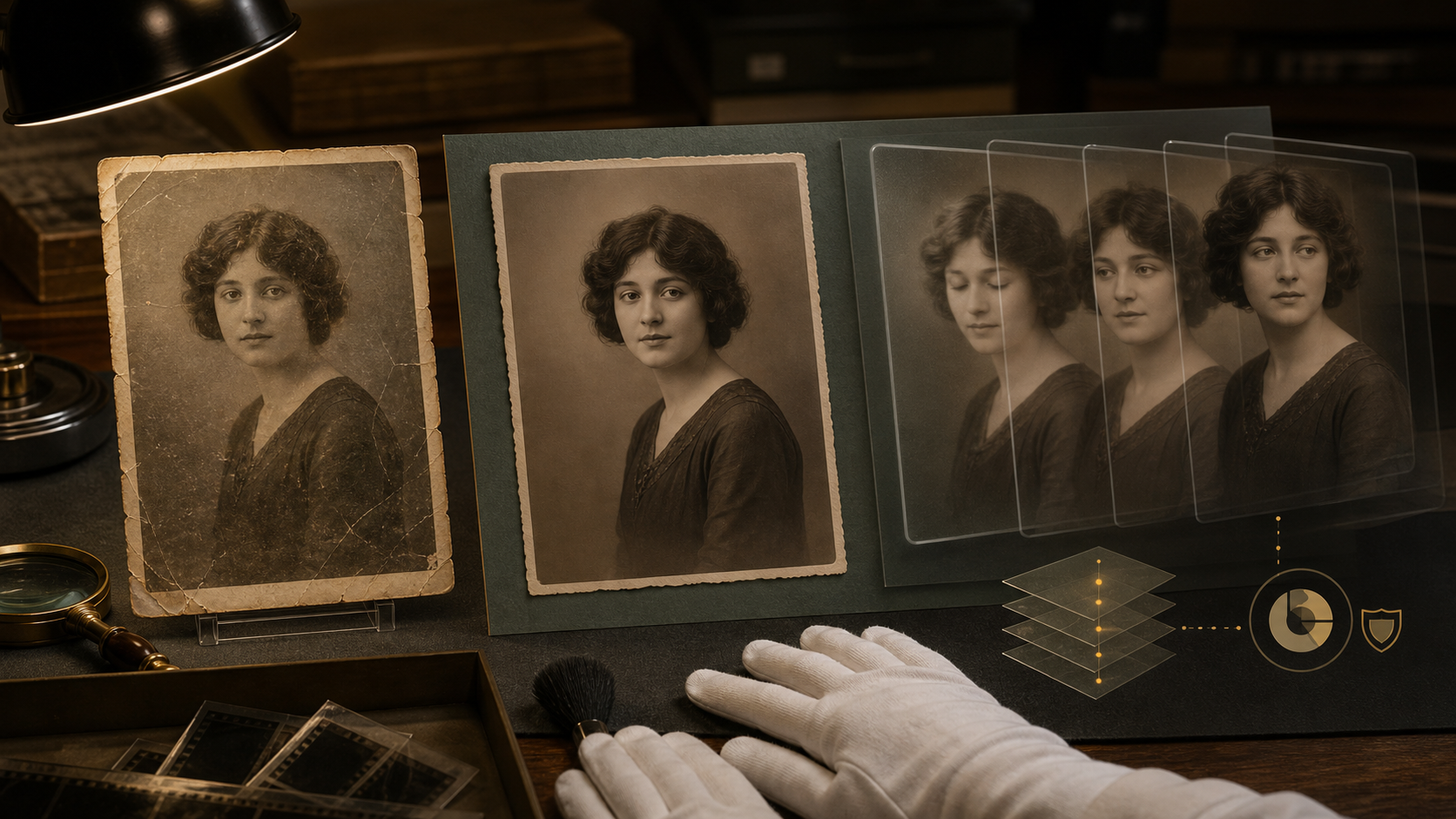
An old photograph can become many different kinds of video. A portrait might blink and turn slightly. A narrator might speak through a photo avatar. A whole street scene might gain wind, traffic, and camera movement. A landscape might become a restrained 3D parallax shot without changing anyone's expression. These outcomes are often grouped under “animate old photos,” but they require different tools, source images, and ethical decisions.
That is why there is no useful single winner in this category. The right choice depends first on the motion you need, then on the condition of the scan, the rights attached to it, and the way you will present the result. A subtle family-history animation and a stylized social clip should not be evaluated by the same standard.
One principle applies to every option in this guide: AI animation does not recover the photographed person's real movement, voice, intentions, or memory. It creates a plausible synthetic performance from one frozen image. Treat the output as an interpretation, not as discovered historical footage. If it will be shared beyond a private experiment, label it clearly and retain the unedited scan beside it.
The product details below reflect publicly available plans and interfaces checked in August 2026. Free allowances, feature names, export policies, and regional availability can change. Confirm the terms shown in your own account before uploading an irreplaceable archive or beginning paid work.
Restore First, Animate Second
Restoration and animation solve different problems. Restoration tries to make the information already present in a photograph easier to see: dust is removed, fading is corrected, a tear is repaired, and contrast is balanced. Animation invents new temporal information between frames. Combining both in one aggressive generation makes it difficult to know whether a changed eye, jawline, medal, hairstyle, or background object came from cleanup or motion synthesis.
Start by making a high-quality digital master. Scan a print flat, include its edges in the first capture, avoid reflections, and save an untouched lossless copy. If the only source is a phone photograph, position the camera parallel to the print and use soft, even light. Do not overwrite this master. Make a working copy for every repair, crop, color treatment, and animation attempt.
On the working copy, fix the issues that can confuse face and depth models before asking for movement. Remove isolated dust and scratches, correct severe color casts, and gently restore local contrast. Be conservative around eyes, teeth, hairlines, jewelry, insignia, handwriting, and culturally significant clothing. Those small details often carry more historical value than a perfectly smooth face.
A general image-to-image workflow can help explore careful cleanup or create a separate visualization, but it is not a specialist archival-restoration system. Compare every result against the master at high magnification. When the model replaces missing detail, record that intervention as reconstruction rather than presenting it as an authentic recovery.
Use this source-quality checklist before animation:
- Face visibility: At least one intended subject has visible eyes, mouth, chin, and facial outline. Heavy profile angles, hands over the face, hats over the eyes, or blown highlights raise the failure rate.
- Useful resolution: The face should occupy enough pixels to inspect. Upscaling can make a file larger, but it cannot prove facial detail that was never captured.
- Natural crop: Leave space around the head for small turns and around the frame for camera movement. A chin or hairline already touching an edge is likely to warp.
- Clean separation: Check whether the face merges into another person, a patterned wall, foliage, or a damaged area. Generators may move those regions together.
- Group complexity: Decide whether to animate one person, separate individual crops, or keep the group still and use parallax. One-face tools cannot infer a respectful multi-person performance from a crowded print.
- Restoration restraint: Toggle between the master and repaired copy. If identity or documentary details changed while still, animation will amplify the error.
- Rights and context: Identify the photographer, archive, donor, living subjects, and any restrictions before uploading. Physical possession of a print does not automatically grant copyright or publicity rights.
Often the most effective improvement is not changing generators. It is making a cleaner crop, repairing one distracting scratch, reducing an extreme color cast, or asking for less motion. Prepare a head-and-shoulders crop for face tools, a wider contextual crop for scene generators, and the original aspect ratio for parallax. Test those variants before paying for another service.
Choose the Motion Type Before the Tool
Define the finished shot in one sentence. “Make this photo move” is too vague; “a two-second blink and gentle head turn, with no speech or background change” is actionable. Most projects fit one of five motion families:
- Subtle facial motion: Blinks, breathing, and restrained head movement. This suits family albums, museum interpretation, and memorial contexts when spectacle would feel intrusive.
- Talking portrait: Lip-sync driven by typed text, recorded speech, or uploaded audio. This works for clearly disclosed narration, but it creates the highest risk of implying that invented words are authentic.
- Creative scene animation: Prompt-directed subject, background, and camera motion. It offers the most storytelling freedom and also the greatest chance of identity drift or fabricated events.
- Depth and parallax: A simulated 3D camera move through foreground and background layers. It is useful for group photographs, architecture, and landscapes because faces can remain still.
- Preset entertainment: A face performs an existing song, expression, or comic motion. It is fast and playful, but generally a poor fit for archives, memorials, or sensitive subjects.
The table below is a decision aid, not a quality ranking. “Free start” describes what a new user may be able to test, not a promise of a free final export.
| Tool | Motion type and best-fit source | Free-start reality | Watermark and usage reality | Major risk to check |
|---|---|---|---|---|
| DeepFake Image to Video | Prompt-directed scene motion; a clear subject with enough surrounding context | Small account credits may not cover the minimum job, so budget for a paid test | Paid plans explicitly cover watermark-free and commercial output; do not assume the same for a free attempt | Strong motion can change identity, clothing, hands, or documentary background details |
| MyHeritage Deep Nostalgia | Preset subtle face motion; a clean, detectable portrait | Nonpaying users can make several animations, but there is no stable universal count | Free results carry the MyHeritage logo; the Complete tier removes it, but does not create blanket commercial rights | Viewers may mistake a technological simulation for recovered footage |
| D-ID V2 Photo Avatar | Audio- or text-driven talking portrait; a frontal, neutral, unobstructed face | A 14-day trial is available | Trial output has a full-screen watermark and is personal-use only; eligible paid use can be commercial | Fabricated speech may be interpreted as something the person actually said |
| HeyGen Photo Avatar / Avatar IV | Polished talking avatar; a clear front-facing head-and-shoulders portrait | Free limits vary by region and account, commonly one to three videos with a small Avatar IV allowance | Free exports are watermarked and limited to personal evaluation; Creator removes the watermark and permits commercial use | Expressive lip-sync and voice can overstate authenticity |
| CapCut Talking Photos | Fast talking-photo clips inside a social editor; a clear, well-lit portrait | Availability and allowance vary by region, account, device, and app version | There is no dependable global rule for free resolution, watermark, or usage; inspect the export screen and terms | Feature names move, and an aggressive preset can distort an old likeness |
| Reface Unboring Animate | Existing musical or comic face performances; a clean JPG/JPEG portrait | The current public page presents paid Basic and Premium subscriptions rather than a verified free allowance | Paid plans advertise no watermark and HD, but not a fixed pixel size or blanket commercial grant | Preset comedy can be undignified or contextually inappropriate |
| Runway Image to Video | Prompt-guided cinematic scene motion; a well-separated subject and background | Free accounts receive a one-time 125-credit allocation for limited testing | Free exports carry a watermark; paid plans remove it and add higher-resolution finishing, with commercial use subject to input rights | Motion Brush advice is obsolete; broad generation can alter identity and scene evidence |
| Pika | Stylized image-to-video or audio-driven facial performance; clear portraits or graphic scenes | The canonical plan listed 80 monthly credits on August 3, 2026, but other official pages have differed; verify live | Current pricing lists no-watermark downloads and commercial use, still subject to rights and strict upload rules | Its real-person policy can rule out minors and many family, celebrity, or copyrighted archive photos |
| Immersity AI | 2D-to-3D depth and parallax; layered group scenes, buildings, vehicles, and landscapes | The web free tier offers watermarked exports up to 720p; mobile entry points may differ | Web free use is noncommercial; paid plans remove the watermark, allow commercial use, and reach up to 4K | Bad depth edges can stretch faces, hair, railings, or frame borders during the camera move |
| TokkingHeads | One-image face animation, text speech, and “Magic Motion”; a simple frontal portrait | The iOS app remains free to download with in-app purchases | Premium is presented as watermark-free; free use is personal/noncommercial | The product appears legacy, its web workflow is uncertain, and maintenance should be verified before subscribing |
1. DeepFake Image to Video — Best for Prompt-Directed Scenes
DeepFake Image to Video is a flexible option when the goal extends beyond a face. It can turn a wider portrait, vehicle, building, or street scene into a short prompt-directed clip. That makes it suitable for a slow camera push through a restored studio portrait, wind moving behind a stationary subject, or a restrained environmental shot built from an archival image.
The current default workflow accepts JPG, PNG, WebP, and BMP files up to 10 MB, as well as an image URL. It offers three- to fifteen-second generations at 720p or 1080p. Because generation cost scales with duration and resolution, the smallest login reward may not cover even the minimum job. Treat any small free credit as an account introduction, not as a guaranteed free export. Paid plans are the ones that explicitly promise watermark-free results and commercial use.
Prompt in layers: describe the person or object that must remain stable, then the smallest desired action, then camera and background behavior. For example: “Preserve the subject's face, clothing, and seated pose; add one natural blink and slight breathing; locked camera; background remains still.” Negative instructions such as “no speech, no smile, no added people, no wardrobe change” help define the boundary, although no prompt can guarantee perfect fidelity.
Use a short 720p draft before a longer high-resolution render. Inspect the first and last frames for face shape, hands, medals, text, and architecture. This is a creative image-to-video generator rather than a dedicated talking-photo or restoration tool, so it is best when controlled interpretation is acceptable.
2. MyHeritage Deep Nostalgia — Best for Restrained Facial Motion
Deep Nostalgia established the familiar old-photo animation pattern: upload a photograph, select a detected face, and apply a preset sequence of blinks, head turns, and small expressions. It animates one detected face at a time, even in a group photograph. Each person must be selected and rendered separately. The result can be downloaded as an MP4, and it does not add speech.
This narrow scope is its advantage. A clear portrait can receive gentle movement without inventing a full scene or script. Begin with the least expressive preset, particularly for memorial or family-history work. If the face is small, damaged, or partially hidden, make a conservative individual crop rather than asking the detector to choose among overlapping people.
Nonpaying accounts can make several animations, but the company does not publish one durable number that applies to every account. Those outputs include a logo. The paid Complete tier removes that logo and expands access; it does not override the photographer's copyright, a subject's privacy rights, or an archive's terms.
Company-reported adoption shows how widely this interaction resonated: more than one million photos were animated in the first 48 hours, 50 million by day 18, 72 million after five weeks, and 80 million by May 2021. The company later described nearly 100 million uses in the feature's first year. These are historical adoption milestones, not independent measures of accuracy or quality. MyHeritage itself describes the result as a technological simulation, which is the right way to frame it for viewers.
3. D-ID V2 Photo Avatar — Best for Clearly Disclosed Narration
D-ID's V2 Photo Avatar converts one still portrait into a presenter-style video driven by typed text, recorded voice, or uploaded audio. It is useful when a historical project needs a concise host, quotation setup, or first-person creative interpretation and the audience will be told that the performance is synthetic.
Input requirements are stricter than they are for subtle preset motion. Use a front-facing, neutral, well-lit, unobstructed face. The visible face should be at least 200 by 200 pixels, and the JPG or PNG file can be no larger than 10 MB. V2 portrait inputs can be up to 1280 by 1280. A tightly cropped profile, broad grin, hand over the chin, or deep shadow across one eye is likely to produce weaker mouth and jaw movement.
The 14-day trial is suitable for evaluating alignment and expression, but trial videos carry a full-screen watermark and are restricted to personal use. Eligible paid plans provide commercial pathways, subject to your rights in the image, script, and audio.
The hard part is not pressing Generate; it is writing and presenting the narration honestly. Never make a deceased relative appear to confess, endorse a product, settle a dispute, or deliver words likely to be mistaken for a recording. Prefer a contemporary narrator or an on-screen caption. If the portrait speaks, include synthetic narration where a viewer can see it without opening the description.
4. HeyGen Photo Avatar / Avatar IV — Best for Polished Talking Portraits
HeyGen's Photo Avatar workflow and Avatar IV are designed for an expressive talking subject created from a single clear photograph. Users can add typed speech, upload audio, or record a voice, then assemble the result in a browser editor. The surrounding production features make it useful for museum explainers, educational introductions, and disclosed family-history presentations that need titles, layouts, and repeatable formatting.
A front-facing head-and-shoulders image with even lighting remains the safest input. Repair scratches crossing the lips or eyes first, and avoid a crop that cuts the chin or crown. With very old portraits, a calm delivery and short sentence usually look more credible than rapid speech or exaggerated emotion.
Free access is not identical across regions and accounts. Current materials describe an overall allowance ranging from one to three free videos, with separate limited trial access for Avatar IV. The exact Avatar IV allowance varies by account and region, so verify the dashboard before scripting or recording. Free sharing is 720p and includes a watermark. Free output is for personal or internal evaluation rather than commercial publishing. The Creator tier raises output to 1080p, removes the watermark, and supports commercial use under the platform terms.
Avatar polish is not historical truth. The model may add smiles, eyebrow movement, and speech rhythm unsupported by the original exposure. Keep the script in the voice of the modern project—“Our records show…”—instead of making the photographed person claim facts in first person.
5. CapCut Talking Photos — Best for Quick Social Editing
CapCut is practical when the animated portrait will immediately become part of a vertical social edit with captions, music, cuts, and overlays. Its talking-photo capability may appear as Talking Photos, Photo to Avatar, AI Avatar, or AI Dialogue Scene depending on region, device, and product version. The general flow is consistent: upload a clear portrait, type dialogue or add audio, generate lip-sync, and continue editing.
This convenience is its main advantage. A creator can test a line, trim pauses, add the disclosure, and format a short clip without moving among several applications. It is not a restoration system, however. Clean scratches and fading before upload, and check whether automatic enhancement changes skin texture or period detail.
There is no reliable worldwide free quota, maximum output resolution, watermark rule, or feature location that applies to every account. Some capabilities move between web, desktop, and mobile releases. Inspect the plan prompt and export summary shown to you rather than relying on an older tutorial. The same caution applies to commercial use, music licensing, templates, and stock voices.
For an old photograph, use a neutral voice and a short statement. Review consonants frame by frame; lip-sync can pull the cheeks, teeth, or jaw into shapes that do not resemble the source. A result that feels acceptable at phone size may look unstable on a larger screen.
6. Reface Unboring Animate — Best for Playful Preset Performances
Unboring Animate applies a catalog of existing songs, dances, expressions, and comic face motions to a photograph. It is intentionally entertainment-oriented. The public workflow asks for a photo containing a face, and its FAQ specifies JPG/JPEG images. A clear, forward-facing portrait gives the face-reenactment system the best starting point.
Choose it for a consensual family joke, a pet animation, or an obviously fictional social post—not for a solemn archive, documentary reenactment, or memorial. Because the performance already carries music and a recognizable emotional tone, the tool gives less control over what the motion implies. A laughing or singing preset can rewrite the perceived mood of a serious photograph.
The current public page presents paid Basic and Premium subscriptions rather than a dependable free animation allowance. Both paid tiers advertise no ads and no watermarks; the service describes output as HD without committing to one universal pixel resolution. Its public plan copy also does not provide a blanket commercial-rights promise, so confirm usage terms for client or monetized work.
Preview the preset with a non-sensitive photo before uploading family material. Check whether the source will be retained and for how long, and avoid content that would embarrass a living subject or conflict with the deceased person's cultural, religious, or family context.
7. Runway Image to Video — Best for Cinematic Prompt Control
Runway's current image-to-video workflow centers on prompt-guided generation with models such as Gen-4 Turbo and Gen-4.5. It is suited to an archival still that needs a controlled camera move, environmental motion, or a broader cinematic interpretation. A wider source with clear separation between person, foreground, and background generally gives the model more room to work than a tightly cropped face.
Older guides frequently recommend painting motion with Motion Brush. That instruction is obsolete. Motion Brush belonged to Gen-2, which Runway fully retired on May 11, 2025; it is not available in the newer generation workflow. Direct motion through concise prompt language instead: define subject action, environmental action, and camera action, while asking the model to preserve identity and period details.
Free accounts currently receive a one-time 125-credit allocation. Gen-4 Turbo can make limited five- or ten-second, roughly 720p-class image-to-video drafts, and free exports include a watermark. Standard and higher plans remove the watermark and provide finishing options such as 4K upscaling. Runway allows commercial output, but only when the user already has the necessary rights in the input and complies with its terms.
Generate the smallest movement that communicates the idea. A locked shot with wind in curtains is easier to defend as interpretation than a model inventing a handshake, crowd, or event outside the frame. If faces drift, shorten the shot or use parallax instead of adding more prompt adjectives.
8. Pika — Best for Stylized Motion and Audio-Driven Performance
Pika covers two relevant paths. Pika 2.5 provides prompt-directed image-to-video for stylized motion, while Pikaformance creates audio-driven facial performance. That means it is no longer accurate to describe Pika only as a general visual-effects generator with no talking-head capability.
As checked on August 3, 2026, the canonical Basic plan lists 80 monthly credits. Other official pages have displayed conflicting totals, so treat 80 as a dated plan snapshot and verify the live account. Standard Pika 2.5 image-to-video supports five- and ten-second clips at 480p on that entry path, while Pikaformance is listed at 720p. Current plan materials include no-watermark downloads and commercial use, but those plan benefits do not give permission to upload any photograph you choose.
Pika's acceptable-use policy is unusually important for historical material. It requires express consent and all necessary rights for photographs or likenesses of real people. It prohibits uploading images that depict or appear to depict anyone under 18, and it restricts celebrity likenesses or copyrighted photographs without authorization. It also requires disclosure that manipulated output is artificial. Many school portraits, childhood albums, news images, and celebrity archives therefore cannot be used even if a technically similar tool would accept the file.
Where the policy and rights allow it, Pika is strongest for an openly stylized reinterpretation or clearly labeled performance. It is less suitable when the objective is documentary restraint. Use a short prompt, preserve the original beside the output, and stop if the animation makes a real person appear to perform an action they would not reasonably approve.
9. Immersity AI — Best for Depth and Parallax
Immersity AI, formerly known as LeiaPix, takes a different approach from face animators. It estimates depth in a two-dimensional photograph, separates spatial layers, and creates a virtual camera move. The face does not need to blink or speak. That makes parallax a strong choice for group portraits, buildings, landscapes, vehicles, and scenes where preserving facial expression matters more than simulating a performance.
The web free tier currently offers unlimited watermarked conversions up to 720p for noncommercial use. Paid plans remove the watermark, include commercial use, and support conversions up to 4K. The company also points users toward a mobile route for free immersive-motion exports, so the exact free entry experience may differ between web and mobile.
Depth is an estimate, not recovered geometry. Hair, hats, railings, tree branches, overlapping shoulders, and decorative borders can be assigned to the wrong plane. When the virtual camera moves, those errors appear as stretched edges, holes, or rubbery faces. Keep the motion shallow, preview both directions, and reduce the camera path until the foreground remains believable.
For a crowded family photograph, parallax is often more respectful than animating one person while everyone else freezes. It can direct attention through the frame without deciding who should smile, speak, or turn. It is still a synthetic reconstruction and should be labeled when shown as part of historical interpretation.
10. TokkingHeads — A Legacy Option to Verify Before Use
TokkingHeads offers one-image face animation, text-driven speech, and a preset “Magic Motion” concept in a phone-oriented workflow. A simple frontal portrait is the best input. It can still be useful for a quick personal experiment if the app is already available in your region and the current terms match your purpose.
The caution is product status. Its iOS listing remains live, but the last visible update is dated August 12, 2024, and the current web generation path could not be independently verified. The app is free to download with in-app purchases. Premium is described as removing the watermark, while free usage is positioned for personal, noncommercial use.
Treat TokkingHeads as a legacy candidate rather than a dependable first choice for a new archive project. Before subscribing, confirm that generation, export, support, privacy controls, and cancellation all work in the version available to you. Do not upload an irreplaceable or sensitive scan merely to see whether an old tutorial still applies. Use a disposable test portrait first, then make a rights-cleared working copy if the service proves operational.
A Respectful End-to-End Workflow
The safest process separates evidence, restoration, animation, and presentation. That separation makes mistakes reversible and helps another family member, editor, or archivist understand what changed.
1. Inventory the photograph and its rights
Record who is pictured, who made the photograph, where the physical or digital source came from, and any date or caption written on it. Ask every identifiable living person for consent, not only the central face. For a group photograph, one person's approval does not cover everyone else. If consent cannot be obtained, use a still restoration or non-identifying scene treatment instead.
For a deceased person, consult the family, estate, archive, or community responsible for the material. Copyright may belong to the photographer or their estate even when the subjects are relatives. Also consider cultural and religious expectations around images of the dead, ceremonial clothing, sacred places, war casualties, and memorial material.
2. Digitize and preserve an untouched master
Capture the best scan available and store it in a clearly named, read-only master folder. Keep the back of the print, handwritten captions, envelope, and catalog record too. Create a checksum or at least duplicate the master to separate storage. Every subsequent file should be a derivative with a version number, never a replacement for the original.
3. Make a conservative restoration copy
Correct global exposure and color first. Then remove isolated defects on a separate layer or version. Avoid “beautifying” age lines, changing body shape, replacing period clothing, or sharpening eyes into invented detail. If a missing region must be reconstructed, save a before-and-after pair and note which area was generated.
4. Prepare crops for the intended motion
Create a close portrait for facial tools, a wider crop for creative scene animation, and a full-frame copy for depth work. Extend canvas only when necessary and label any generated boundary. If the source contains several people, decide whether each person will be treated separately or whether the entire group should receive only a camera move.
5. Write a motion brief before uploading
Specify duration, subject action, camera action, background behavior, audio, and forbidden changes. A useful brief might read: “Four seconds; one blink and slight head turn; no speech; locked camera; preserve uniform, badge, and background; no new objects.” This gives you a standard against which to reject an attractive but historically misleading render.
6. Test the lowest-risk, lowest-cost version
Use the shortest duration, lowest practical resolution, least expressive preset, or shallowest parallax move. Generate one variable at a time. If the face fails, test the clean crop before switching products. If the background warps, reduce camera motion. Save the tool name, date, plan, settings, prompt, seed when available, and output ID.
7. Add audio without manufacturing evidence
Use licensed music, ambient sound, or a present-day narrator. If a photographed person appears to speak, do not imitate their voice or frame the script as a recovered recording. Avoid quotation marks unless the words are documented and the presentation makes clear that the audio is synthetic. Place synthetic narration on screen and in accompanying metadata.
8. Review with people who know the context
Ask a family member, archivist, historian, or community representative to inspect identity, clothing, setting, gesture, and tone. They may spot a reversed insignia, changed facial trait, inappropriate smile, or cultural issue that a technical reviewer misses. Revision is easier before music, captions, and final color are locked.
9. Label the result where it is seen
Use AI-animated reconstruction on the video itself, not only in a social caption that can be detached during reposting. Add synthetic narration whenever generated or avatar-driven speech is present. Explain in the description which photograph was used, what was repaired, which elements were animated, and that the motion is not historical evidence.
10. Export and archive the full record
Keep the untouched scan, restoration master, cropped inputs, prompts, edit log, consent record, audio licenses, raw outputs, final timeline, and published file. A future viewer should be able to separate the original evidence from every generated layer. Export a clean archival copy and a platform-specific copy with baked-in labels; never rely on editable metadata alone.
Quality Control Before Publishing
Watch the clip at normal speed, half speed, and frame by frame. Compare it side by side with the still source rather than relying on memory. Use this final review:
- Identity: Do eye spacing, nose shape, jawline, age, skin marks, and hairstyle remain recognizably consistent?
- Anatomy: Do teeth, lips, ears, hands, glasses, hats, and overlapping faces behave coherently throughout the clip?
- History: Did the model alter text, medals, uniforms, tools, architecture, vehicles, religious objects, or the number of people?
- Motion: Is the movement small enough for the available evidence? Look for frozen shoulders under a moving head, sliding pupils, rubbery borders, and sudden expression changes.
- Depth: In parallax, do hair and railings separate cleanly, or does the background stretch through the subject?
- Audio: Does timing feel natural without implying a real recording? Are music, voice, and sound effects licensed and contextually appropriate?
- Disclosure: Are
AI-animated reconstructionand, when needed,synthetic narrationreadable in the frame and included in the description? - Permissions: Does the final use still match the consent obtained, the tool plan, the archive terms, and the intended audience?
Reject a generation when it changes who the person appears to be, what they appear to do, or what the original scene documents. A technically smooth result can still be the wrong result. For historical and family material, restraint is a quality metric.
Frequently Asked Questions
Can AI reveal how someone in an old photo really moved?
No. A single photograph contains no record of the frames before or after the shutter. The system predicts motion learned from other data. Even a convincing blink or head turn is synthetic and should not be used as evidence of the person's real mannerisms, emotions, health, or behavior.
Should I restore an old photo before animating it?
Usually, yes—but preserve the untouched scan and restore conservatively. Dust across an eye, a faded mouth, or a torn edge can confuse animation. At the same time, aggressive face enhancement may invent identity details. Make restoration and animation separate, documented stages so viewers can distinguish cleanup from reconstruction.
Which motion type is safest for a group photograph?
Shallow depth/parallax is often the least intrusive because it moves the virtual camera rather than assigning expressions to individuals. If you animate faces separately, obtain consent from every living person shown and explain why some people move while others do not. Avoid face animation when subjects overlap or include minors under a service policy that prohibits their upload.
Can I make a deceased relative speak?
Technically, several tools can animate speech. Ethically, the script and presentation matter more than the capability. Obtain family or estate approval, avoid voice imitation and disputed claims, and never imply that synthetic audio is a real recording. Prefer present-day narration. If a portrait speaks, display synthetic narration and describe the creative reconstruction.
Are any of these tools completely free?
Some provide a limited test, monthly credits, a watermarked export, or noncommercial access. None should be assumed to offer an unrestricted free final video. A “free” plan may limit duration, resolution, rights, storage, or eligible subjects. Check the live account screen immediately before generation and again before public or commercial use.
Why does my animated face look less accurate than the still image?
The usual causes are a face that is too small, an angled or obstructed pose, restoration artifacts, a tight crop, or motion that asks the model to reveal unseen geometry. Try a cleaner crop, reduce expression and head rotation, shorten the clip, and use a locked camera. Better input and less motion often help more than changing tools.
What files should I keep after publishing?
Keep the original scan, all restoration versions, animation inputs, prompts and settings, raw generations, consent and rights records, audio licenses, edit project, and final labeled exports. Preserve a note that the video is a synthetic interpretation and not historical evidence. This record protects both the source photograph and the people connected to it.
Final Takeaway
The most suitable old-photo animator is the one whose motion type matches your source and whose terms match your rights. Use subtle presets for a clear portrait, talking avatars only for disclosed narration, scene generators for openly creative interpretation, and parallax when the photograph itself should remain visually stable.
Most importantly, improve and document the source before chasing a more dramatic model. Preserve the master, ask permission, request the smallest meaningful movement, check every altered detail, and label the result. The goal is not to manufacture a more exciting past. It is to create a transparent present-day interpretation without losing sight of the photograph that came first.