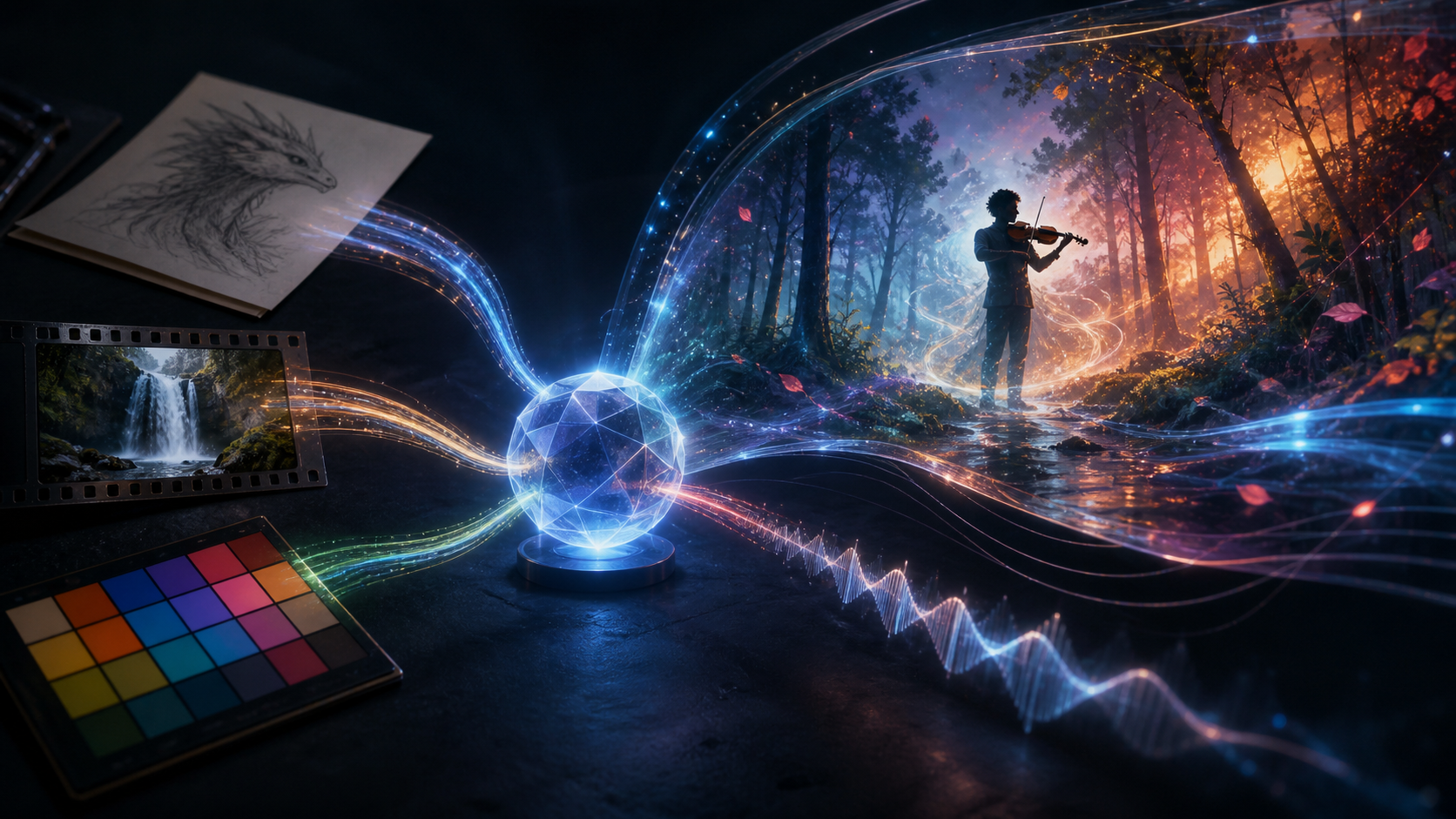
Gemini Omni is Google's new family of multimodal creative models. Its long-term idea is easy to summarize: combine different kinds of input and create different kinds of output in one coherent system. The first release, Gemini Omni Flash, begins with video generation and editing.
That “begins with video” detail is important. Gemini Omni is often described as an any-input, any-output model, but the current preview is not a universal converter for every medium. As of August 2026, the documented developer model focuses on video output while accepting text, images, audio, and video as input. Google has said that more output types will follow over time.
For creators, the immediate change is not simply another text-to-video option. Gemini Omni Flash can use several reference types together and supports conversational editing, allowing a video to be refined through follow-up instructions. This guide separates current capability from future direction and shows how to evaluate the model inside a real production workflow.
Gemini Omni in One Sentence
Gemini Omni combines Gemini's multimodal reasoning with generative media capabilities so that a creator can direct and revise video using text, image, audio, and video references.
Google announced Gemini Omni at I/O 2026 and introduced Gemini Omni Flash as the first model in the family. For developers, the preview model is identified as gemini-omni-flash-preview. Preview status means interfaces, limits, pricing, behavior, and availability can change. A production team should pin its workflow to current documentation and test representative material before making delivery commitments.
Gemini Omni is a creative model family, not a replacement name for every Gemini reasoning model. It sits alongside other Gemini systems with a specific emphasis on generation and editing.
What “Any Input” Means Today
The model can reason across multiple supplied media types:
- Text: a scene description, script, edit instruction, shot plan, dialogue, or constraint
- Image: a character design, product photo, environment, material, style reference, or sketch
- Audio: dialogue, music, rhythm, ambience, or a sound reference
- Video: source footage, motion reference, camera reference, performance, or an earlier generated result
The point is not to collect every possible input. Each reference should answer a production question. A character image may define appearance, a source video may define motion, an audio track may define timing, and text may explain how the pieces should be combined.
For example, a creator could supply a character illustration, a walking video, a visual-style reference, and a music cue. The prompt can ask the model to apply the motion to the illustrated character, preserve the environment, change styles in time with the beat, and produce a coherent video.
This is materially different from writing a long text prompt that tries to describe every reference from memory. The model receives the actual visual, temporal, and acoustic evidence.
What It Can Output Now
The current public developer guide centers on video generation and editing. Documented workflows include:
- Text-to-video generation
- Image-to-video generation
- Reference-to-video using mixed media
- Editing an existing video with natural language
- Multi-turn video refinement
- Object or character replacement
- Style and material transformation
- Camera-angle changes
- Motion transfer
- Audio-driven visual changes
- Sketch-guided motion and scene construction
Google's broader description says Gemini Omni is intended to create any output from any input, but image and text output expansion belongs to the roadmap rather than the current video-focused starting point. Avoid planning a production around an unreleased output mode.
Conversational Video Editing
Traditional generative video workflows often treat every correction as a new prompt. A creator gets a clip, changes the wording, generates again, and hopes the correct elements return. Even if the second output improves one issue, it may introduce a different subject, camera, color palette, or background.
Gemini Omni uses conversational editing to make revision stateful. A creator can begin with a generated or uploaded clip and give a targeted follow-up:
- Move the camera behind the performer.
- Replace the instrument with a transparent glass sculpture.
- Keep the subject unchanged but turn the room into a moonlit conservatory.
- Remove the object on the left and preserve every other element.
- Synchronize the window lights to the supplied percussion track.
Each instruction builds on the current result through Google's Interactions API in the developer workflow. This can make iterative direction feel closer to working with an editor.
However, “conversational” does not mean perfectly non-destructive. A revision may still alter details that were supposed to stay fixed. Save every approved version, state preservation constraints explicitly, and compare the result against the previous clip.
World Knowledge and Physical Logic
Google positions Gemini Omni as a model that draws on Gemini's knowledge of history, science, culture, narrative, and real-world behavior. Its examples include educational explainers, historically grounded scenes, and motion that follows physical relationships.
This can help a prompt move beyond surface style. Instead of merely asking for a protein-folding animation, a creator can specify the educational goal, relevant structure, material metaphor, audience level, and narration. The model can use the topic context to shape the sequence.
Still, generative media is not an authoritative simulator. Scientific, historical, medical, and instructional videos require review by a qualified person. Plausible movement or polished narration can make an error more convincing, not more correct.
Reference-to-Video Workflows
Reference input is one of Gemini Omni's most distinctive areas. A reference can control identity, material, motion, camera behavior, style, or sound. The strongest prompts assign each input a role.
Character Replacement
Supply a source video for motion and a clear character image for appearance. Ask the model to transfer the performance while preserving timing, dialogue, and environment. Review face identity, limb movement, contact with objects, clothing, and lip synchronization.
Motion Transfer
Use an input video as motion evidence and apply it to a new subject or material. A prompt might preserve the swimming path of an animal while replacing the visible body with a reflective abstract shape. The motion reference explains what should happen; the image reference defines what should appear.
Style Transfer Over Time
Combine a video with one or more style images, then specify when the style changes and what must remain stable. The prompt should distinguish appearance from content: transform texture, lighting, and rendering language without changing the subject, camera path, or underlying action.
Audio-Driven Editing
Provide music or sound and connect visible events to specific acoustic features. Lights can pulse on percussion, cuts can follow beats, or environmental motion can build with a musical rise. State whether the original audio should remain, be replaced, or be mixed with generated sound.
Sketch-to-Video
A rough drawing can define object placement or movement rather than final appearance. Explain that the sketch is guidance only, identify what each mark represents, and state that the drawing itself should not appear in the result.
A Practical Prompt Structure
Gemini Omni prompts can carry more inputs than an ordinary video prompt, so role clarity matters. Use this structure:
- Deliverable: the kind of clip and its purpose
- Input roles: what each supplied text, image, audio, or video controls
- Scene: subject, environment, lighting, and visual facts
- Action: the visible event in chronological order
- Camera: framing, angle, movement, and cuts
- Audio: dialogue, ambience, sound effects, music, and synchronization
- Preservation: what must remain unchanged
- Exclusions: unwanted elements, text, brands, transitions, or artifacts
Text-to-Video Example
Create a ten-second cinematic product concept. A generic translucent speaker rests on dark volcanic stone inside a quiet greenhouse after rain. Begin with a wide static shot, then make one slow forward dolly as warm light moves through the material. Condensation falls naturally from nearby leaves. Soft rain and room ambience only; no music or voice. Preserve rigid product geometry. No logos, labels, text, people, or camera cuts.
Mixed-Reference Example
Use the supplied character image only for face, hair, costume, and color palette. Use the supplied running video only for body motion and camera pace. Place the character in the supplied desert environment. Keep the motion direction left to right and preserve the original music timing. At the sixth second, dust rises on the strongest beat. Do not show any source interface, reference border, text, or watermark.
Conversational Edit Example
Keep the current subject, performance, camera path, clip length, dialogue, and foreground unchanged. Replace only the daytime sky with a stormy blue-hour sky. Add a distant flash behind the mountains at the end of the second sentence. Do not add rain or change the subject's lighting until the flash.
The preservation sentence limits the edit surface. If several changes are independent, apply them one at a time and save each result.
Step-by-Step Creator Workflow
Step 1: Define a Single Deliverable
Decide whether you need a social hook, ad concept, dialogue scene, visual effect, educational demonstration, music visual, or source shot for a longer edit. Set the intended duration and aspect ratio before generating.
Step 2: Collect Only Useful References
Choose clean, rights-cleared assets. Use a high-resolution character or product image, a short source video without unnecessary cuts, and an audio clip that contains the timing you want. Remove irrelevant overlays, captions, logos, and private information.
Step 3: Create an Input Map
Write one line per input:
- Image A controls the subject's appearance.
- Image B controls material and palette.
- Video A controls movement and camera.
- Audio A controls rhythm and final soundtrack.
If two inputs conflict, decide which has priority before prompting.
Step 4: Draft the Prompt in Time Order
Describe what the viewer sees first, what changes, and how the clip ends. For several shots, label each shot and give it a purpose. Avoid asking for many transformations in a short clip.
Step 5: Generate a Test
Use an economical setting when available. The first result should answer whether the reference combination and directing idea work—not whether every pixel is ready to publish.
Creators can also compare current options in the DeepFake model catalog. If Gemini Omni is not available for the needed configuration, a text-to-video workflow or another model may provide the required starting point.
Step 6: Review Every Modality
Watch the clip several times with different priorities:
- Visual identity and object consistency
- Anatomy, contact, motion, and physical behavior
- Camera path and edit continuity
- Dialogue, lip synchronization, and speaker assignment
- Music timing and sound-effect alignment
- Text, signs, logos, and unintended additions
- Scientific, historical, or factual accuracy
Step 7: Edit Conversationally
Begin from the strongest result. State what must stay fixed, request one bounded change, and compare before and after. If the new version degrades, return to the approved parent rather than continuing from the damaged branch.
Step 8: Finish in a Conventional Editor
Trim unstable frames, assemble coverage, mix sound, add exact captions and brand graphics, color-match shots, and produce platform-specific exports. Generative editing reduces some manual work; it does not replace the need for a controlled finishing pass.
Where Gemini Omni Fits in a Longer Production
A video-generation model usually produces shots, not an entire finished campaign or film. Build a longer project from structured units:
- Script and identify story beats.
- Create character, product, and environment references.
- Plan a shot list with duration and audio needs.
- Generate or edit each shot.
- Review continuity across all selected clips.
- Assemble picture and sound.
- Add captions, graphics, music licenses, and final disclosure.
- Export and verify every destination format.
If a source clip is already strong but needs a controlled visual transformation, compare it with the available video-to-video tools. Choose the system that best meets the shot's control requirements rather than moving every asset through the newest model by default.
Use Cases
Marketing
Combine product imagery, campaign references, a music cue, and a written brief to explore several ad concepts. Keep claims, prices, logos, and calls to action out of the generative layer unless they will be proofread and rebuilt in post.
Education
Translate a sketch and explanation into an animated lesson. Use the model for visualization and pacing, then verify every factual statement and visual mechanism. Provide captions and a transcript for accessibility.
Entertainment and Storytelling
Use character images, performances, audio, and environments to create previs or short scenes. Maintain a continuity bible for clothing, props, names, voice, screen direction, and lighting.
Music Visuals
Drive visual events from a track or reference performance. Mark beats, sections, and transitions before generation. Confirm that the creator has rights to use the music and any visible performer.
Video Repair and Transformation
Remove an unwanted object, change an environment, transform a material, or adjust the camera angle. Preserve the original file and check areas outside the requested edit for unintended changes.
Limitations and Risks
Preview Instability
The developer model is in preview. Model names, parameters, output behavior, quotas, and pricing may change. Avoid silently updating a production workflow without regression tests.
Imperfect Preservation
Conversational editing aims to maintain continuity, but complex edits can change faces, hands, backgrounds, audio, timing, or geometry. Treat every round as a new asset requiring review.
Hallucinated Knowledge
World knowledge can improve story grounding, but it can also produce confident factual mistakes. Use primary sources and expert review for educational or high-stakes content.
Rights and Consent
Mixed references can make it easy to import material without a clear license. Record the source and permitted use of every image, video, voice, and audio file. Obtain consent before transforming a recognizable person's likeness or voice.
Availability
Access varies by subscription tier, region, product, and developer rollout. Google lists the Gemini app, Flow, YouTube Shorts, Vids, AI Studio, and API among supported or expanding surfaces, but not every feature is available everywhere.
Safety and Provenance
Google says content created or edited with Gemini Omni in supported consumer products includes an imperceptible SynthID watermark and C2PA Content Credentials. These measures support provenance, but they do not remove the creator's responsibility to disclose synthetic media where viewers could otherwise be misled.
Do not use generated or edited footage as authentic evidence of an event. Avoid deceptive impersonation, non-consensual sexual content, harassment, fraud, and unsafe instructions. Review outputs for private data, unintended brands, stereotypes, and dangerous physical behavior.
For professional work, keep source assets, consent records, prompts, model versions, generated files, and final approvals together.
Gemini Omni: Confirmed Today vs Future Direction
| Area | Confirmed for the current starting point | Future direction or variable |
|---|---|---|
| Model | Gemini Omni Flash preview | Additional Omni variants may follow |
| Inputs | Text, image, audio, and video | Broader combinations may expand |
| Output | Video-focused generation and editing | Google plans additional output types |
| Editing | Natural-language, multi-turn refinement | Preservation quality varies by task |
| Grounding | Gemini world knowledge and physical reasoning | Expert verification is still required |
| Access | Selected Google products and API preview | Tier, geography, limits, and pricing can change |
This distinction prevents roadmap language from becoming an accidental product promise.
Final Evaluation Checklist
Before approving a Gemini Omni clip, confirm that:
- Every reference had a clear purpose and valid usage rights.
- The output mode and current preview limits fit the deliverable.
- Character, object, environment, and style identity remain consistent.
- Motion, contact, gravity, reflections, and camera behavior are plausible.
- Dialogue, effects, music, and visible actions stay synchronized.
- Text, signage, numbers, and factual content have been verified.
- Conversational edits did not alter protected parts of the clip.
- The selected shot has useful opening and closing frames.
- Captions, graphics, color, and audio were finished for the target platform.
- Consent, disclosure, and provenance requirements are satisfied.
Conclusion
Gemini Omni matters because it treats video as a medium that can be directed with several kinds of evidence and revised through conversation. Its first release accepts text, images, audio, and video, then uses them to generate or edit video with a shared understanding of the scene.
The ambitious “anything from anything” phrase describes the family vision. The production reality today is Gemini Omni Flash in preview, beginning with video. Creators who respect that boundary can evaluate it intelligently: assign roles to references, prompt in time order, save revision branches, inspect every modality, and finish the strongest outputs with ordinary editorial discipline.