A short loop can reveal a weak face swap faster than a longer video. Imagine a fictional performer who looks at the camera, tilts their head and returns to their opening pose. If the color around the cheeks changes on the last frame, you see the jump every time the animation repeats. A good GIF face swap starts with a target that already loops well.
Use the GIF Face Swap tool with an animated target and a still source portrait. Check both the result and the actual file type after you open the export.
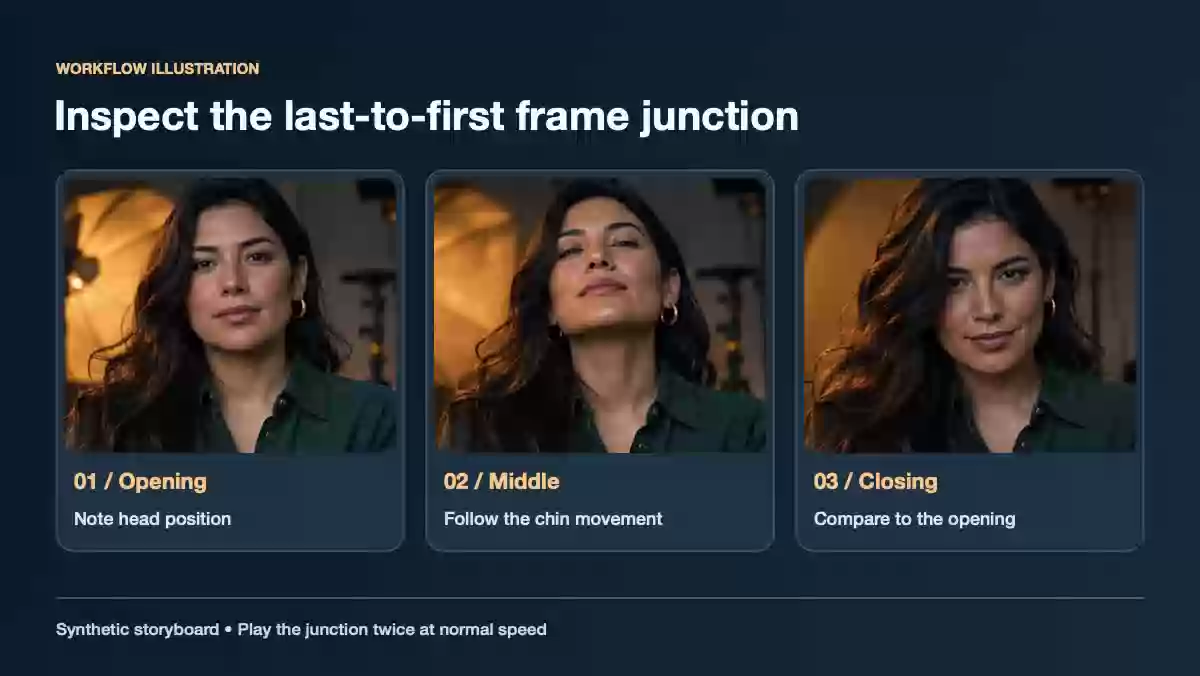
A loop planning example. Compare the final and first poses before you submit your target.
1. Trim the target where the loop can close
Pick a short action whose end is close to its start. A small tilt followed by a return works well as a test. Set the opening frame when the face is readable, then stop shortly after it returns to the same position. Play the original three times. If the shoulders or background jump at the join, move the trim point before you run the swap.
Save the original separately so you can tell whether a seam or speed problem was present before generation. GIFs can have different delays per frame. A long pause at the end may be intentional, so check the pacing instead of assuming it should match a constant-rate video.
2. Pick a matching still portrait
The source face is the identity you want to see. Use a JPG, PNG or WebP under the tool's 10 MB image limit, with one visible, well-lit face. For a slight head tilt in a warmly lit room, start with a portrait that has a similar angle and light direction. Avoid strong blur, reflections across glasses and a hand over the mouth. Only use footage and likenesses you are authorized to edit.
The target is the file whose movement you want to preserve. DeepFake AI's GIF workflow accepts GIF, MP4, WebM and MOV targets up to 50 MB. Keep the target small enough to upload comfortably and large enough that you can see the eyes and jaw at the intended viewing size.
3. Generate and inspect the loop
- On GIF Face Swap, add your animation to Target GIF or Video.
- Add the still portrait under Source Face Image.
- Check Target Face. If only one face is visible, use the default Largest face. If another face competes for the selection, start with a crop or a clearer shot.
- Select Generate GIF Face Swap. If it processes in the background, find the job in Projects.
- Open the result. Watch three loops at normal speed, then pause or scrub through the turn and the join.
On the turn, look for the face changing size or a moving halo near the hairline. At the join, compare the last frame and the first for color, chin position and background motion. If only the join is rough, edit the trim or try a brief hold with a stable pose. If the face flickers throughout the action, choose a better source portrait or use a target with gentler motion. A change to one input at a time makes it easier to isolate the cause.
4. Verify the download and prepare it for sharing
The GIF page accepts both animated images and videos, and the result can be displayed as a GIF or as a video. Use Open result and inspect the actual downloaded format. If it is already a GIF, check that it repeats where you plan to use it. If it is an MP4 and the destination requires a GIF, convert that file in an editor, choose loop playback and review the converted file again. Renaming the extension leaves the file format unchanged.
Use the video export if the animation is intended for a player that handles MP4 and you want to preserve any available audio. GIF has no audio track. For an animated image, balance file size against face readability. If you have to make it smaller, start by trimming unused frames or reducing the width slightly. Aggressive palette reduction can introduce visible bands or colored speckles on skin.
Frequently asked questions
Can I use a GIF as the replacement face?
Use a still portrait for the replacement. If your best reference is inside an animation, save one sharp frame as a still image and choose it as the source. Use the GIF or clip as the target.
Why does the swap look fine until the loop repeats?
Look at the source animation's first and last frames and compare the output at the same points. If the jump is visible in the original, fix the target trim first. If the original closes smoothly, check the swapped face for a change in scale, tone or identity at the seam.
For still photos and longer clips, see the photo, video and GIF mode comparison.