Choose the face swap mode by what you need to deliver. Use Photo Face Swap for a still image, Video Face Swap for a moving shot, or GIF Face Swap for a short reaction loop. All three start with a still source portrait. The target file supplies the composition, movement, and timing relevant to each mode.
The quickest way to see the difference is to take one authorized clip, export one frame as a still and a brief part as a GIF, and keep the original video. Use the same replacement portrait for all three. That gives you a fair comparison of the formats while keeping the underlying face, framing, and lighting similar.
| Mode | Use it for | Target file | What to verify |
|---|---|---|---|
| Photo | A thumbnail, portrait, or a single frame from a project | JPG, PNG, or WebP, up to 10 MB | Sharpness, outline, expression, and blend at the intended display size |
| Video | A shot with movement, an edit point, or dialogue | MP4, WebM, MOV, or GIF, up to 50 MB | Facial consistency across frames, duration, and any audio in the saved output |
| GIF | A short reaction or repeating animation | A GIF or short video supported by the same moving-media workflow, up to 50 MB | Actual downloaded file type, the loop seam, and playback where the asset will be posted |
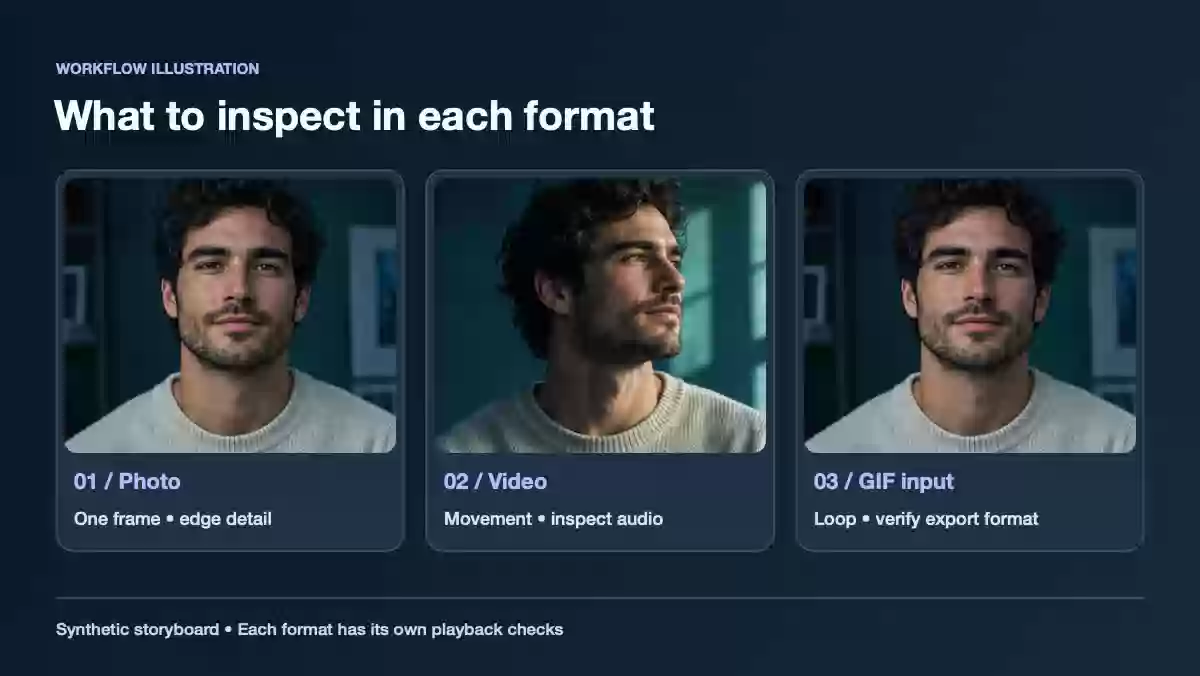
Use the three formats to inspect different aspects of the same edit. The illustration represents a test setup.
Photo is the simplest way to inspect one frame
Pick a target still where the face is clearly visible. After the swap, inspect the eyes, mouth, jawline, and direction of the shadows. Judge the result at the size where someone will actually see it, then zoom in to catch rough transitions around the face.
A still is also a useful first check for a proposed video edit. Save a clean frame from the video and try it in Photo mode. This can tell you whether the portrait and the scene are a plausible match before you review motion. A good still leaves questions about turns, occlusions, and frame-to-frame consistency open.
Video gives you the full shot
In Video mode, check the opening frame, the hardest turn, and the ending. If someone speaks, play the downloaded clip with sound and compare the audio and timing with the original. If the target has hard cuts, inspect both sides of each cut. A good opening preview tells you little about a later shot from a different angle.
The video face swap walkthrough covers the upload and result steps. If a clip contains more than one face, use the group video target selection guide to check the size rank for the intended person.
A GIF needs a clean seam and a format check
For a loop, pick a short action with similar poses near the start and end. A small wave or glance is easier to review than a sequence with multiple cuts. Watch the animation repeat several times. If the expression or face position jumps as it restarts, trim at a closer pose and try the shorter target.
The GIF tab uses the moving-media pipeline. Check the downloaded file type before handing it off or uploading it elsewhere. The interface can display a GIF result when the output is identified as GIF, and a video output uses a video player. When the delivery platform requires a GIF and your saved output is video, convert it in your editor and test the final loop in the destination. If sound is part of the deliverable, choose video for the final file.